Insites AI · Team chat
Insites AI in Microsoft Teams Beta
Last updated 18 November 2026
Ask Insites AI in Teams, apply changes with a button and get digests in a channel.
What Microsoft Teams adds
Insites AI is pre-release. This page was written against the build of 14 November 2026 and will be revised at release.
Connect one Microsoft Teams organization to your site, and your team can ask Insites AI questions in Teams, approve its changes with a button, and get the daily digest and spending alerts in a channel or a direct message. Only administrators of the site can use it, and each person acts with their own AI role and limits. It works the same way as Insites AI in Slack.
Set it up under Integrations > Microsoft Teams. Only an administrator with the Owner AI role can connect Teams or change its settings.
Before you start
- You need the Owner AI role on the site. Each administrator has an AI role: Viewer, Editor or Owner. The roles are set in AI > Configuration, on the Roles tab. If no one is an owner yet, any administrator can set the roles there.
- A Teams administrator needs to add the Insites AI app to your organization. The steps are below. Once it is in your organization's app catalog, anyone can add it to a team or chat.
- Each person who will use it must be an administrator of the site, with the same email address in Teams and in Insites.
Add the Insites AI app to Teams
Insites AI is not in the Microsoft Teams store yet. Until it is, a Teams administrator adds it to your organization from a file. You do this once for the whole organization.
- Download the app package: insites-ai-teams-1.1.1.zip. Keep it as a .zip file. Do not unzip it.
- In Teams, click Apps in the left bar (1). Then click Manage your apps, the gear at the top right (2).
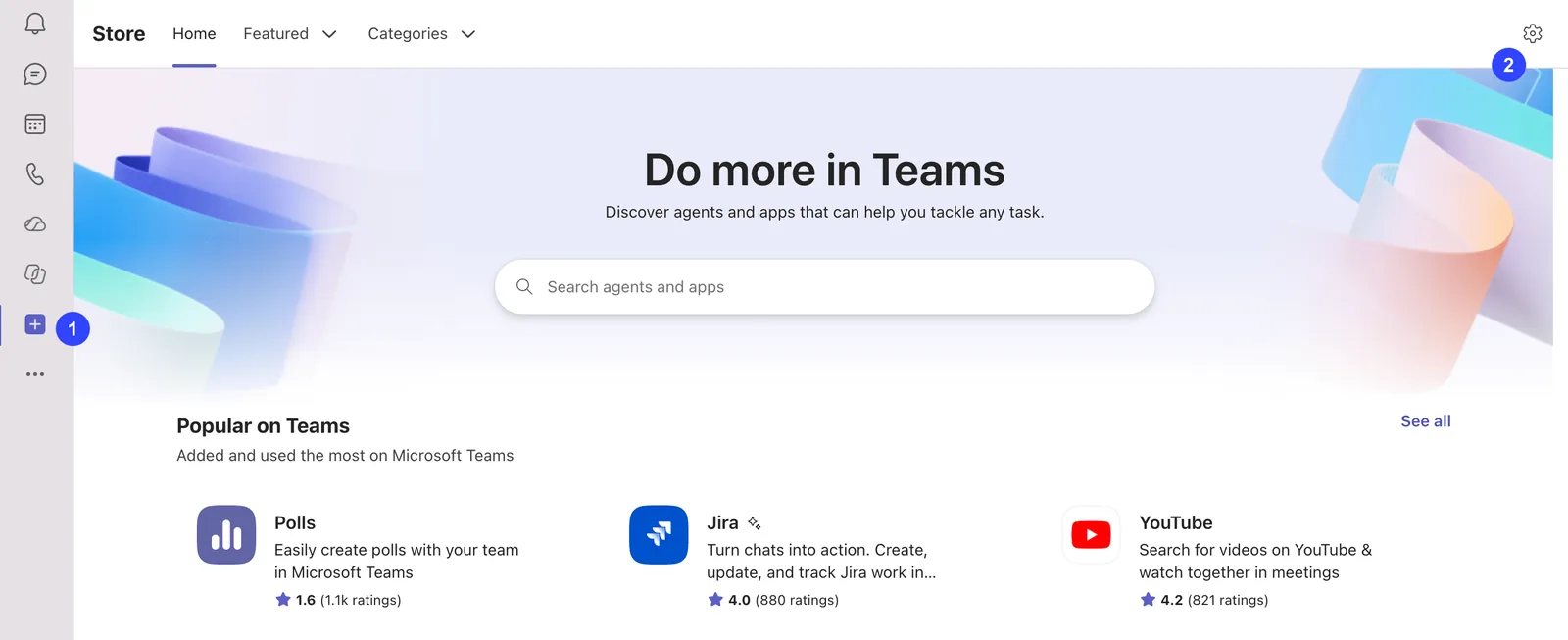
Apps, then Manage your apps - Click Upload an app (3).

Upload an app - Click Upload an app to your org's app catalog (4), then choose the .zip file you downloaded.
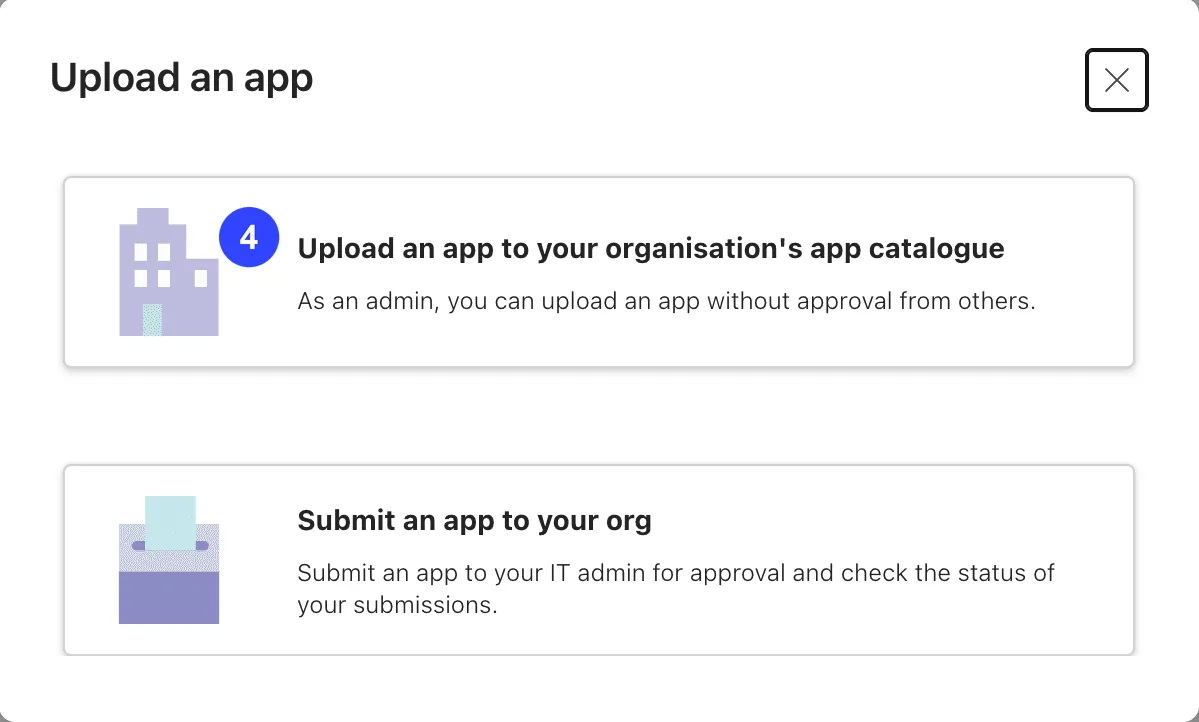
Choose the first option - Go back to Apps and open Built for your org. Click Insites AI (5).
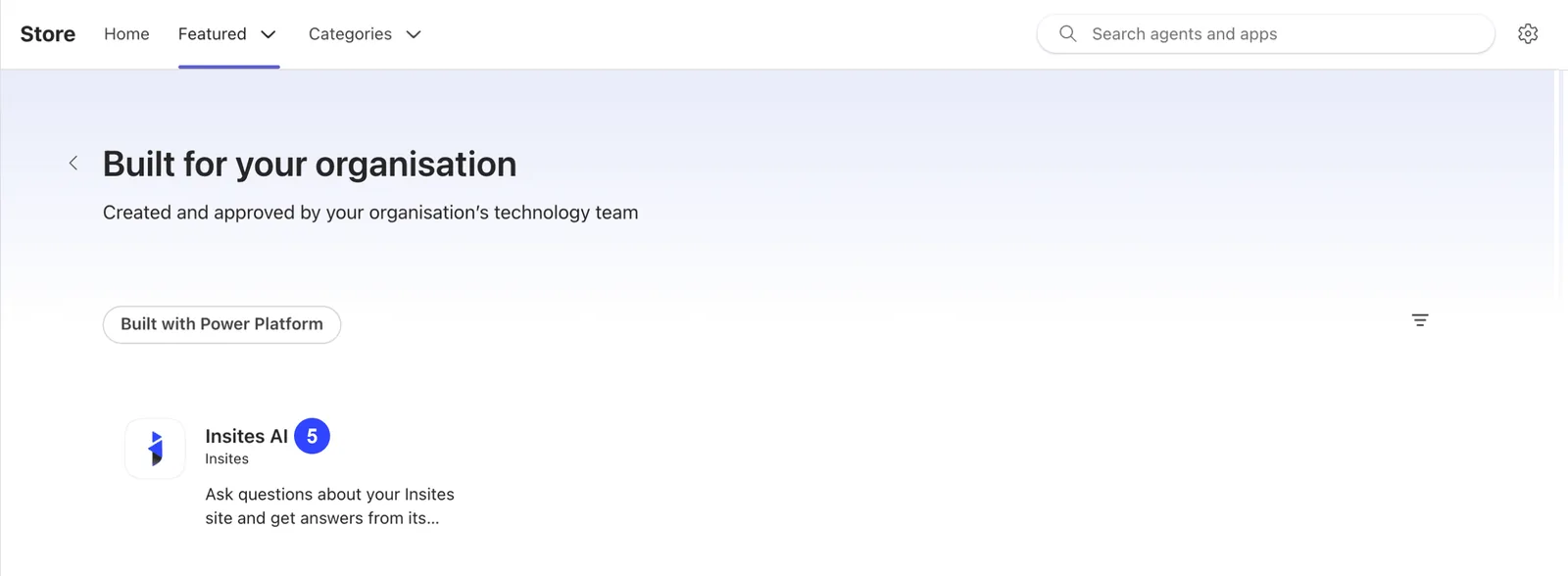
Insites AI under Built for your org - Click Add (6).
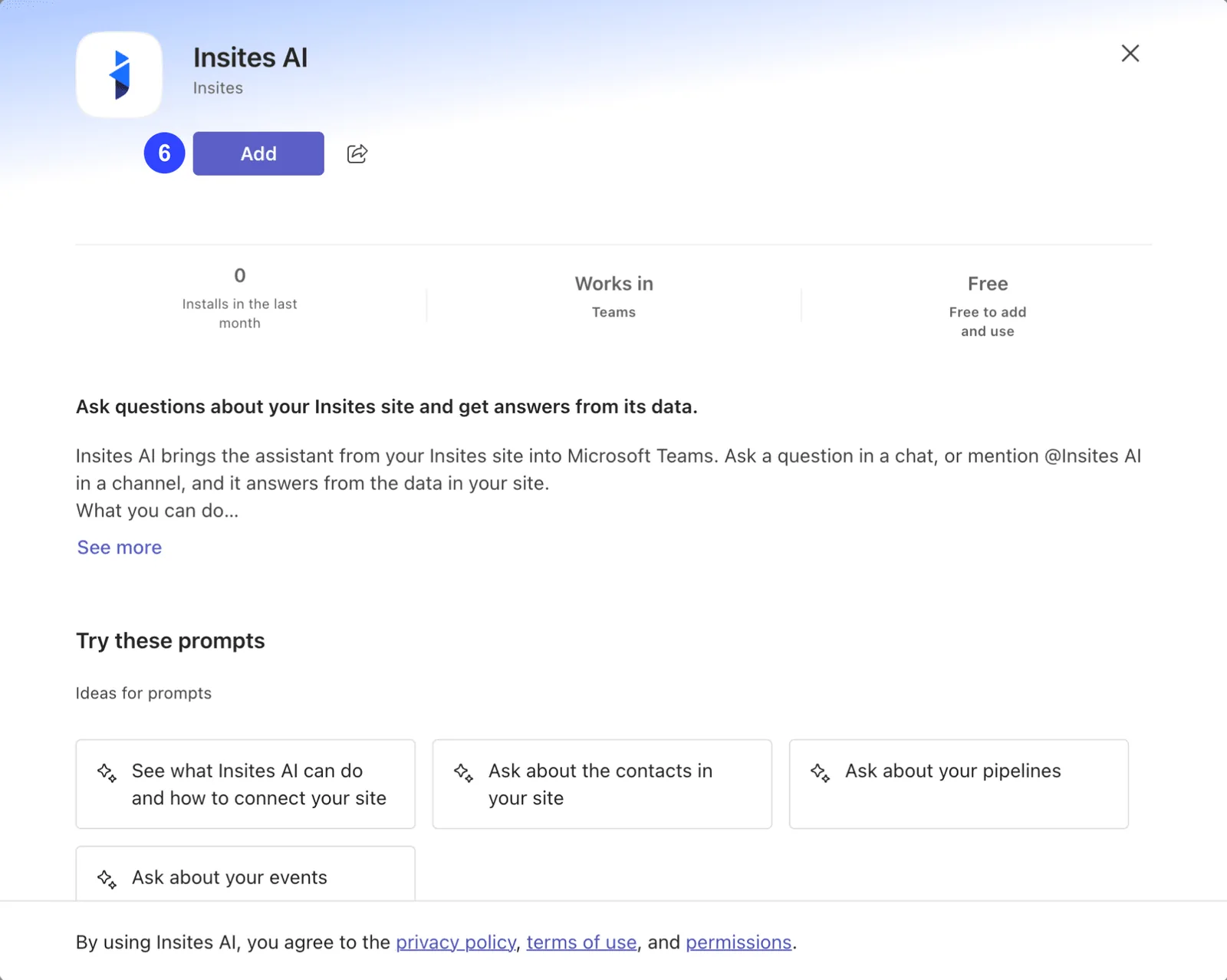
Add the app - Click Open (7). Teams opens your chat with Insites AI.
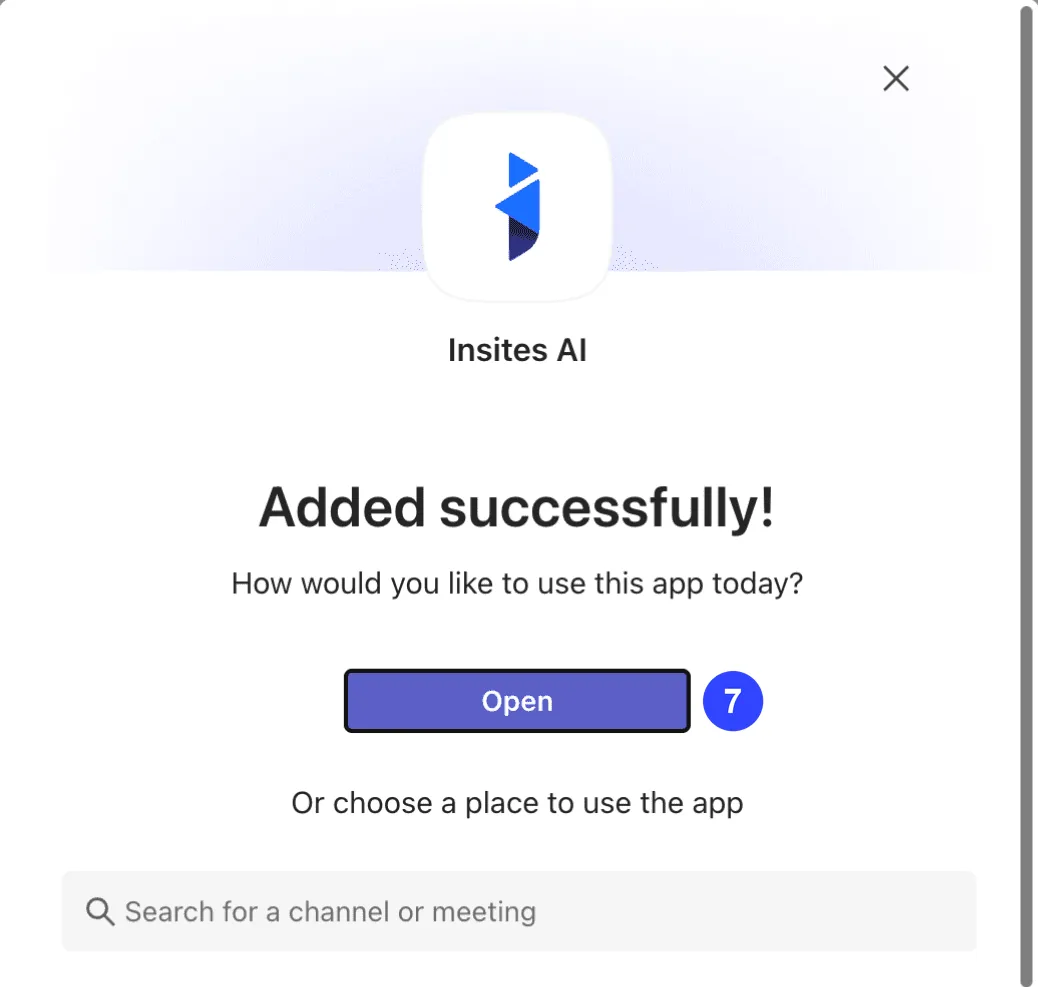
Open the chat with Insites AI
If you do not see Upload an app to your org's app catalog, you are not a Teams administrator. Send the file to your Teams administrator, or click Submit an app to your org to ask for approval.
The wording in Teams depends on your language setting. The pictures above show organisation's app catalogue, which is the same option.
Other people in your organization do not upload anything. They open Apps, find Insites AI under Built for your org and click Add.
Connect Microsoft Teams
Teams does not use a sign-in redirect the way Slack does. Instead you link your organization to your site with a short code.
- Go to Integrations > Microsoft Teams. The page shows Not Connected.
- Click Create Link Code. The code lasts 15 minutes. Click Create Another Link Code if it runs out.
- Click Open Chat in Teams. Teams opens your chat with Insites AI, and the link line is copied for you. The line starts with
link. - Paste the line into the chat and send it. Send it to Insites AI, not to a person.
- The bot replies Connected and names your site. Back in the admin, the page shows Connected.
- Add Insites AI to each team you want to use it in, and mention it once in a channel:
@Insites AI. This is how Teams lets the bot see that team's channels.
If the line did not copy, or the page has no Open Chat in Teams button, select the whole line that starts with link on the page, copy it, and paste it into your chat with Insites AI.
You can connect one Teams organization (one Microsoft tenant) to a site, and one site to a tenant.
Choose where it posts
| Setting | What it does |
|---|---|
| Daily Digest | The digest is built once a night and sent here as a card with the numbers that moved. Choose None to turn it off |
| Spending Alerts | Spending alerts go here when the month's spend reaches a threshold set in Configuration. Choose None to turn them off |
Both settings are under Where It Posts. Each one can go to a person or to a channel:
- A person is listed as Direct message: Name. The digest or alert arrives in that person's own chat with Insites AI. You do not need a team or a channel for this.
- A channel comes from a team where the bot has been mentioned. The digest or alert starts a new thread in it.
A person appears in the list after they send Insites AI one message in their own chat with it in Teams. A mention in a channel does not count. They must be an administrator of the site, with the same email address in Teams and in Insites. The owner who sent the link line from their own chat is on the list already.
If a person or a channel is missing, click Refresh. Then click Save. If a person stops being an administrator, they leave the list and nothing more is sent to them.
Check that it arrives
After you save, click Send Test under Daily Digest or Spending Alerts. Insites AI sends one test message to the saved person or channel straight away. The message says it is a test. It holds none of your data and uses no credits.
The page then shows Test sent to and the destination, or says that the test was not sent and why. Send Test is off until a destination is saved: if you change the list, save first.
Choose who can chat
Set Allowed or Not allowed for each AI role, then click Save.
- Viewers can ask questions. Viewers cannot apply changes in any case.
- Editors can ask questions and apply changes.
- Owners are always allowed.
Teams matches each person to an administrator by the email address on their Teams account. If no administrator has that email, the assistant refuses with Ask your site owner to add you as an administrator. Add the person as an administrator with the same email address. The match is remembered for 24 hours.
Ask from Teams
- Mention @Insites AI in a channel.
- Send the bot a direct message.
It answers with a message in the chat. A record in the answer comes with a button that opens it in the admin, for example Open contact. A chart arrives as an image under the answer.
While it works
The bot first replies Thinking.... This message changes as the assistant works, in plain words, for example Reading orders..., Checking the contact form... or Writing the answer.... It changes at most once every two seconds.
- If the answer takes 20 seconds or less, it replaces the Thinking... message.
- If the answer takes longer than 20 seconds, it arrives as a new reply that mentions you, so Teams notifies you. The Thinking... message is removed.
Approve a change
When the assistant proposes a change, it appears as a card with three buttons: Apply, Discard and Let others apply. The card also says how long you have and who can apply it, for example Apply within 10 minutes. Only Sam can apply it.
Each proposal also lists what it does not do, under the heading Not in this proposal:. Read it before you apply.
What happens when you press Apply or Discard
- The buttons go at once, and the card shows Applying... or Discarding.... A second press does nothing.
- When it finishes, the result becomes the first line of the card, in bold. For example Applied by Sam or Discarded by Sam. Other results are partly applied, put back, or not applied with the reason.
- One new reply under the card says who decided and when. For example Applied by Sam at 15 Jan 2027, 4:00 PM (Perth, UTC+08:00). or Discarded by Sam at 15 Jan 2027, 4:00 PM (Perth, UTC+08:00). Nothing was changed.
The time uses the time zone set in Settings > Localization. If no time zone is set, the time is in UTC and says UTC, for example 15 Jan 2027, 8:00 AM UTC.
After a change is applied, the new reply has these buttons:
- Open page opens the changed page on your site. It appears only when the change is to a page.
- Open in History opens the change in History, where you can revert it.
A partial is used inside other pages and has no page of its own. After a change to a partial is applied, the reply has only Open in History.
Who can apply
Only the person who asked for the change can apply or discard it. If someone else presses a button, the card keeps its buttons, and the bot replies under the card with that person's name and the reason. For example:
- Not applied: this proposal belongs to another administrator. Only the person who asked for it can apply or discard it.
- Not applied: your AI role does not allow changes. Ask a site owner to change your role, or ask the person who asked for this change to apply it.
Let others apply
The person who asked can press Let others apply to hand the proposal to the team. If anyone else presses it, the bot replies Only the person who asked for this change can let others apply it.
After the hand-over:
- The Let others apply button goes, and the card reads, for example, Apply within 24 hours. Sam asked. Anyone who can make changes can apply it.
- Any administrator whose AI role allows changes can apply or discard it. A viewer still cannot.
- The proposal can be applied for 24 hours from the hand-over.
- When someone else decides, the new reply names both people, for example Applied by Alex at 15 Jan 2027, 4:00 PM (Perth, UTC+08:00) (asked by Sam).
How long a proposal lasts
A proposal can be applied for 10 minutes. If you press a button after that, the first line of the card reads This proposal has expired. Ask for the change again. and the buttons go. To make the change, ask the assistant again.
If the page changed after the proposal
When you press Apply, Insites checks that the content has not changed since the proposal was made. For a page, partial or layout it compares the content. For a record it compares the fields the change sets. If someone changed it in the meantime, nothing is changed, and the card reads, for example, Not applied: this page changed after the proposal was made. Ask for the change again. Ask again, so the new proposal starts from the current content.
Rate an answer
Every answer the assistant writes has Teams' own thumbs up and thumbs down under it. A proposed change has them too.
- Click the thumbs up or the thumbs down.
- Teams opens a short form. Say why if you want to, then submit it.
Your rating is saved with your reason. Each person has one rating per answer. Ratings help the assistant learn, the same way as the thumbs in the admin.
Post to Teams from an automation
An automation can include a Post to Microsoft Teams action. It needs the Teams channel id, which is the part of the channel's link that looks like 19:[email protected], and Teams must be connected first. See How automations work.
Cost
A question in Teams costs the same as in the admin, and an applied change costs 3 credits. If the site has no credits left, the bot says so. See Credits, limits and pricing.
Security
- Every message from Teams carries a Microsoft Bot Framework token, which Insites verifies before reading it.
- Insites only ever calls back to Microsoft's own Teams service addresses.
- Insites stores the link between your tenant and your site, your channel choices, and a 24-hour cache of which administrator each Teams user is. It does not store your messages.
- Apply and Discard use the same checks as the admin: who asked for the proposal, whether it was handed to others, and whether it has expired.
Disconnect Microsoft Teams
- Go to Integrations > Microsoft Teams and click Disconnect.
- Click Disconnect Teams, or Cancel.
Disconnecting removes the link between your organization and the site. The digest and alerts stop posting, and the bot tells anyone who asks that the organization is not connected. People can still use Insites AI in the admin. To remove the app from Teams as well, ask your Teams administrator.
If something does not work
| What you see | What to do |
|---|---|
| The page says Your AI role is Editor. Only an administrator with the Owner AI role can connect Microsoft Teams or change these settings. | The same message names the owners of the site. Ask one of them to connect Teams, or to change your role in AI > Configuration, on the Roles tab |
| That link code is not valid or has expired | Get a new code from Integrations > Microsoft Teams and send it within 15 minutes |
| This organization is not connected to a site yet | An owner needs to link it, as above |
| Ask your site owner to add you as an administrator | Your Teams email does not match an administrator on the site |
| Your AI role is not allowed to use Insites AI from Teams | An owner can allow your role under Who Can Chat |
| Teams did not return the channel list | Mention the bot in the team you want, then click Refresh |
| The Daily Digest and Spending Alerts lists are empty | Send Insites AI a message in your own chat with it in Teams, or add it to a team and mention it in a channel. Then click Refresh |
| This proposal has expired. Ask for the change again. | Ask the assistant for the change again. A proposal can be applied for 10 minutes, or 24 hours after Let others apply |