Getting Started · Using Insites
Set up your sales pipeline
Last updated 18 November 2026
Create a pipeline and stages, add your first deal, and move it across the board.
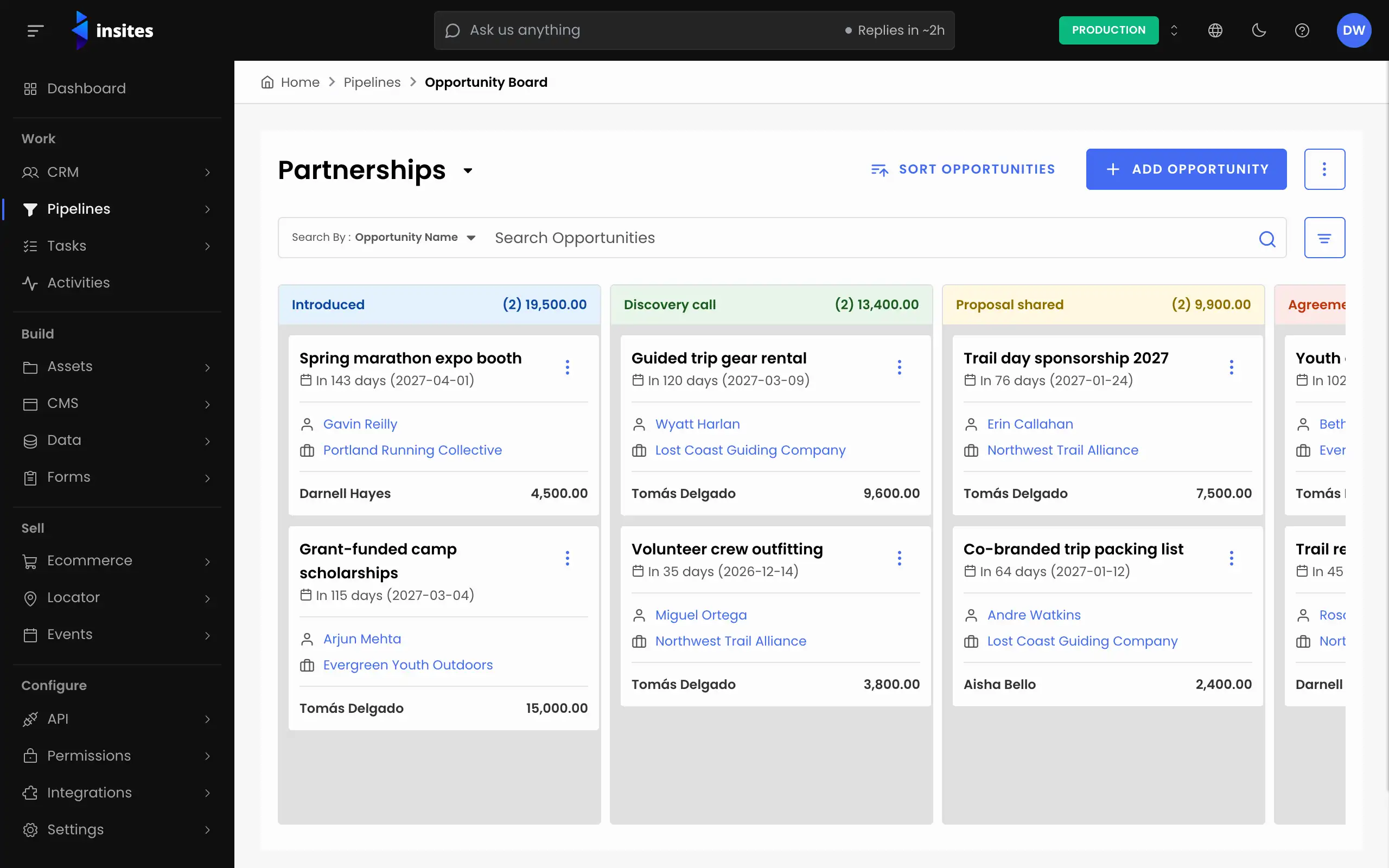
A sales pipeline shows every deal as a card on a board, with one column for each stage. This guide takes you from nothing to a working board: you create a pipeline, set its stages, add an opportunity and move it forward.
You need to be an administrator of the site. If you want deals linked to people and companies, set up your CRM first.
Create the pipeline
Go to Pipelines > Configuration and select ADD PIPELINE. On the Details tab, type a Pipeline Name, for example Sales. Then set a sales target with a Target Value, a Start Date and an End Date. All three are required.
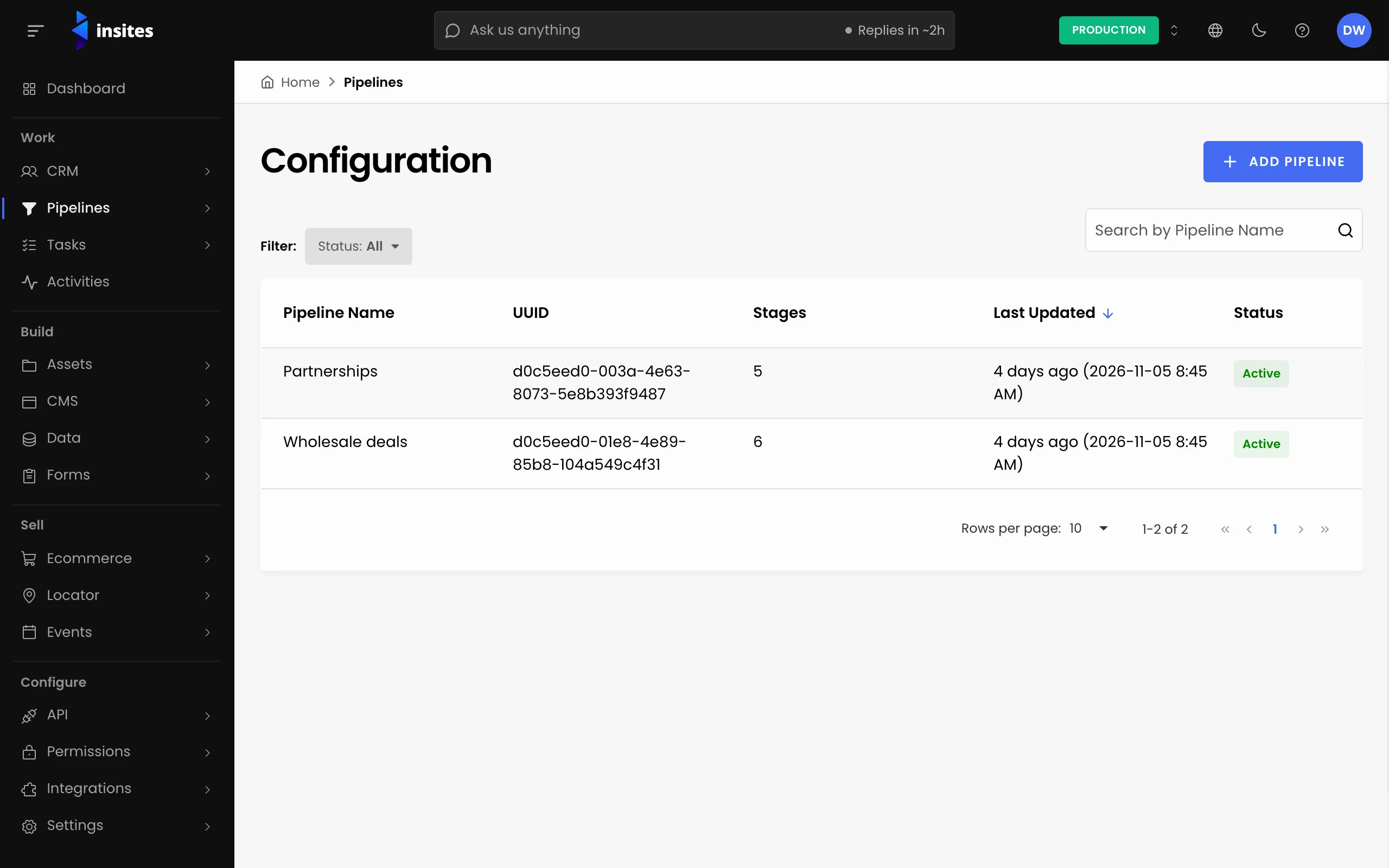
Turn on Won Reason Required or Lost Reason Required if you want every closed deal to say why. You keep the list of reasons under Pipelines > System Fields.
Add the stages
Open the Stages tab and select Add Stage. Give each stage a Stage Name, such as Lead, Qualified, Proposal or Negotiation. You can also set its colors and an Empty Message. Select ADD STAGE to keep it, and repeat for each stage. Drag the stages into the order a deal moves through.
Note
You cannot add the pipeline while a stage is open and not kept. Select ADD STAGE or CANCEL first.
Select ADD PIPELINE to finish. The Display Fields tab lets you choose what each card on the board shows.
Add your first opportunity
An opportunity is one deal. Go to Pipelines > Opportunity Board, pick your pipeline and select ADD OPPORTUNITY. Fill in the required fields: Opportunity Name, Opportunity Owner, Pipeline, Stage, Value and Target Conversion Date. Under Who it is for, pick a contact and a company from your CRM.
Move deals forward
Drag a card to another column, or use the card menu and choose Move To Stage. When a deal ends, choose Mark as Won, Mark as Lost or Mark as Withdrawn from the card menu. Each column heading shows how many deals it holds and their total value.
Warning
Deleting a saved stage also deletes every opportunity on it. Move the opportunities to another stage first.
See how you are doing
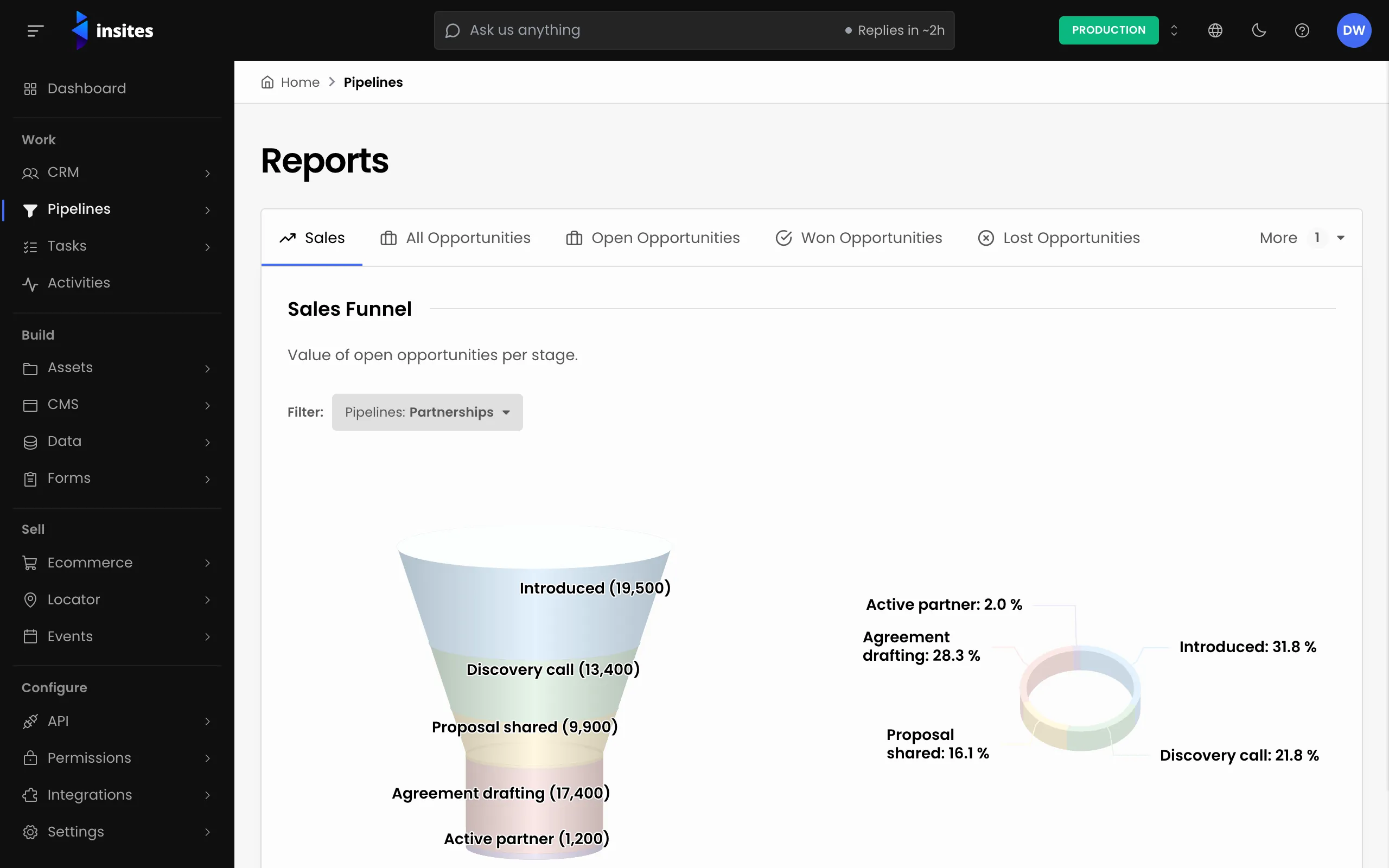
Open Pipelines > Reports. The Sales tab holds a Sales Funnel, which shows the value of open opportunities per stage, and a Sales Target report, which compares the value of won deals with your target.
Related
- Create a sales pipeline and its stages: every step in detail
- Add and move opportunities on the board: the board in detail
- Import opportunities: bring in deals from a file
- Report on pipeline value: the reports in detail
- Pipelines overview: what the module does