Site · Data
Export and back up a database
Last updated 18 November 2026
Export database items to a CSV file and keep a copy of the database configuration.
After this guide you will have two things saved on your computer: a CSV file of your database items, and a copy of how the database is set up. Together they let you keep a record of the database or rebuild its contents later.
Export the items
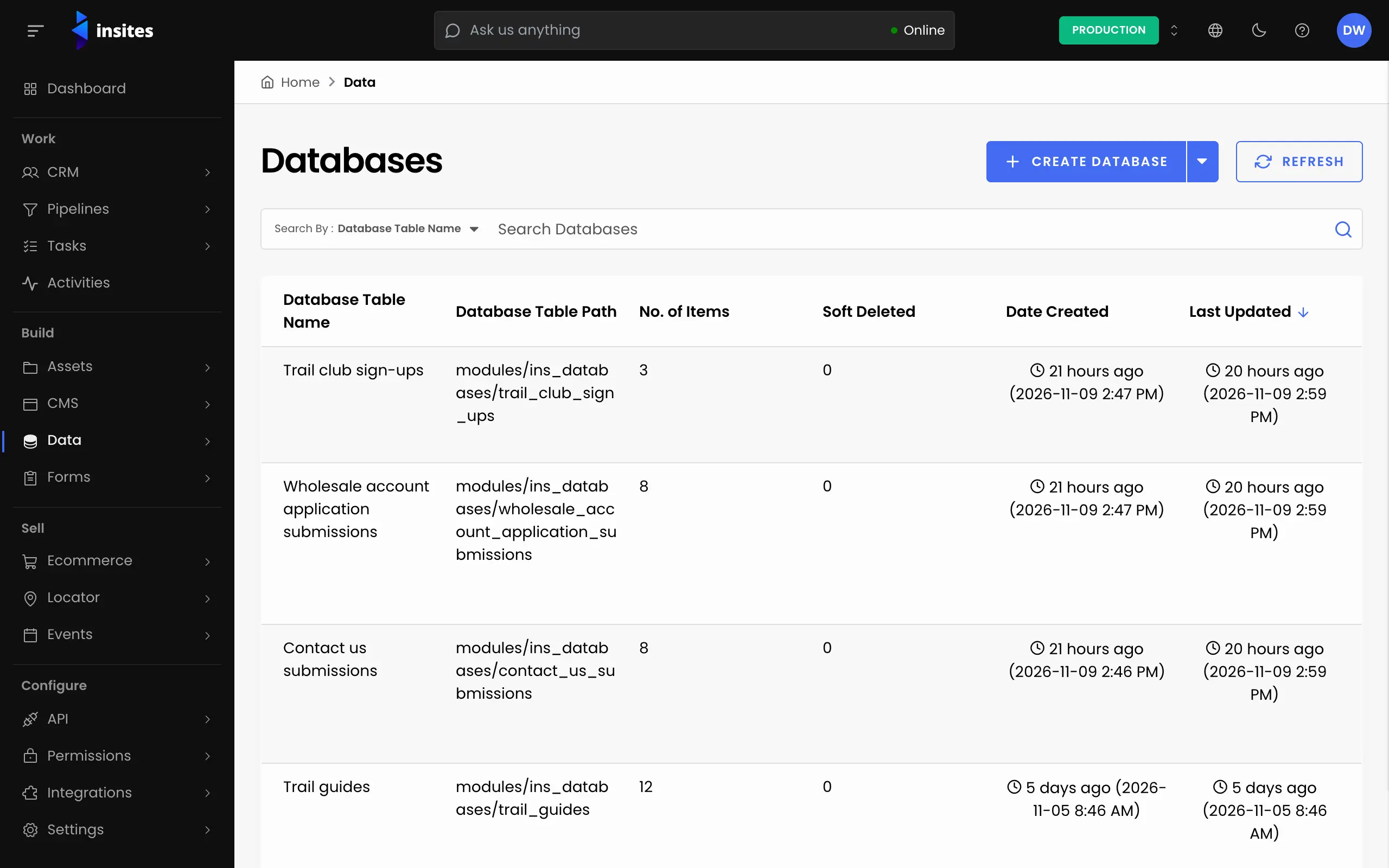
- In the Site Admin, select Data, then Databases, and open your database.
- Open the actions menu and choose Export Database Items. A panel opens on the right. The option appears once the database has items.
- Under List Options, choose Active Items. To export items that were deleted, choose Deleted Items instead.
- Choose Sort By and Order if you want the rows in a set order.
- To export only some items, turn on Apply Filters. Choose a field in Search By and enter a Search Keyword.
- Under Platform Fields, turn on Created At and Updated At to add those dates as columns.
- Click Export Database Items.
Insites prepares the file in the background. The download starts on its own when the file is ready. The file is a CSV named after the database and the date.
If no items match your settings, Insites tells you and does not create a file. Change the filters and try again.
What the file contains
The first column is ID, and each field has a column named after its label. A Data Source field gets two columns: the ID of the linked item, and its display value next to it. That makes the file readable without opening the admin.
Tip
The import matches columns by their label. To bring exported items back, start from the import CSV template and copy your rows into it. See Import items from a CSV file.
Save the database setup
The CSV holds your items, not the fields themselves. To keep a copy of the fields and their settings:
- Open the database and choose Edit Database Configuration from the actions menu.
- On the Configuration tab, choose JSON or YAML.
- Click Copy JSON Configuration or Copy YAML Configuration, and paste it into a file you keep.
Get back an item you deleted
When you delete an item from the list, it moves to the recently deleted items. Choose View Recently Deleted Items from the actions menu, find the item, and choose Restore. You can also select several items and restore them together.
Warning
Empty Database deletes every item in the database. Export the items first, so you have a copy.