Site · Data
Import items from a CSV file
Last updated 18 November 2026
Add or update many database items at once by importing a CSV file.
When you finish this guide, the items from your spreadsheet will be in your database. You can add new items and update existing ones in the same file.
Before you start
You need a database with its fields already set up. If you do not have one yet, follow Create a database and its fields first. The import only fills fields that already exist.
Download the CSV template
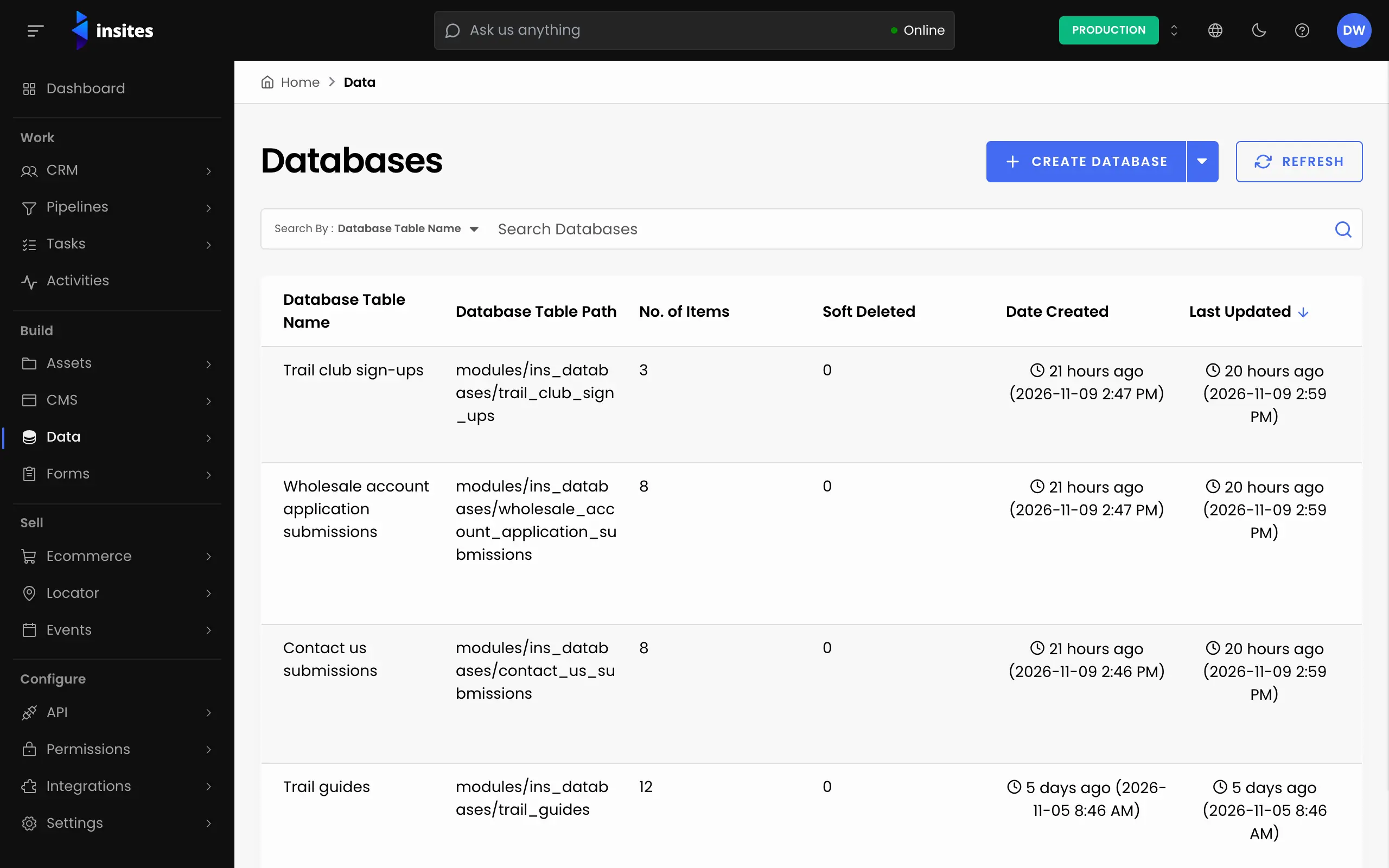
- In the Site Admin, select Data, then Databases, and open your database.
- Open the actions menu and choose Import Database Items. A panel opens on the right.
- Click CSV Template in the panel text. Your browser downloads a CSV file with one column for each field.
The first column is ID. The other columns use the field labels, in the same order as the item form.
Fill in the template
Open the template in a spreadsheet program and add one row per item. Keep the header row exactly as it is. The import stops if a header is renamed, added or removed.
- To add a new item, leave the
IDcell empty. - To update an item, put its ID in the
IDcell. You can see each item's ID in the items list.
Some fields need their values in a set format:
| Field | Format | Example |
|---|---|---|
| Integer | A whole number | 42 |
| Float | A number | 19.95 |
| Phone | A plus sign, the country code, a space, then the number | +61 2 9000 0000 |
| Color | A hash sign and six hexadecimal characters | #1A2B3C |
| Array | A JSON list | [1,2,3] |
Save the file as CSV.
Upload the file
- Go back to the Import Database Items panel.
- Drop your file on Upload CSV to Import, or click it to choose the file. You can upload one CSV file at a time.
- Click Import Database Items.
Insites checks the file before it imports anything. If it finds a problem, an Error Log appears in the panel. Each line names the problem with its row and column, for example a missing value in a mandatory field. Fix the file and upload it again.
Wait for the import to finish
The import runs in the background, so you can keep working. Each row is added or updated on its own. If some rows fail, the rows that passed are still imported.
Note
You can run one import at a time. If you start a second one before the first finishes, Insites asks you to wait.
Click Refresh on the items list to see your new and updated items.