Site · Data
Link two databases
Last updated 18 November 2026
Connect items in one database to items in another with a Data Source field.
After this guide, each item in one database will point to an item in another. For example, each staff member can point to the office they work in. The admin then shows the office name on every staff member.
You make the link with a Data Source field. It goes in the database that points, not the one it points to.
Before you start
You need both databases. In this example they are Offices and Staff Members. The Offices database should have a field that names each office, such as Office Name. To set up a database, see Create a database and its fields.
Add a Data Source field
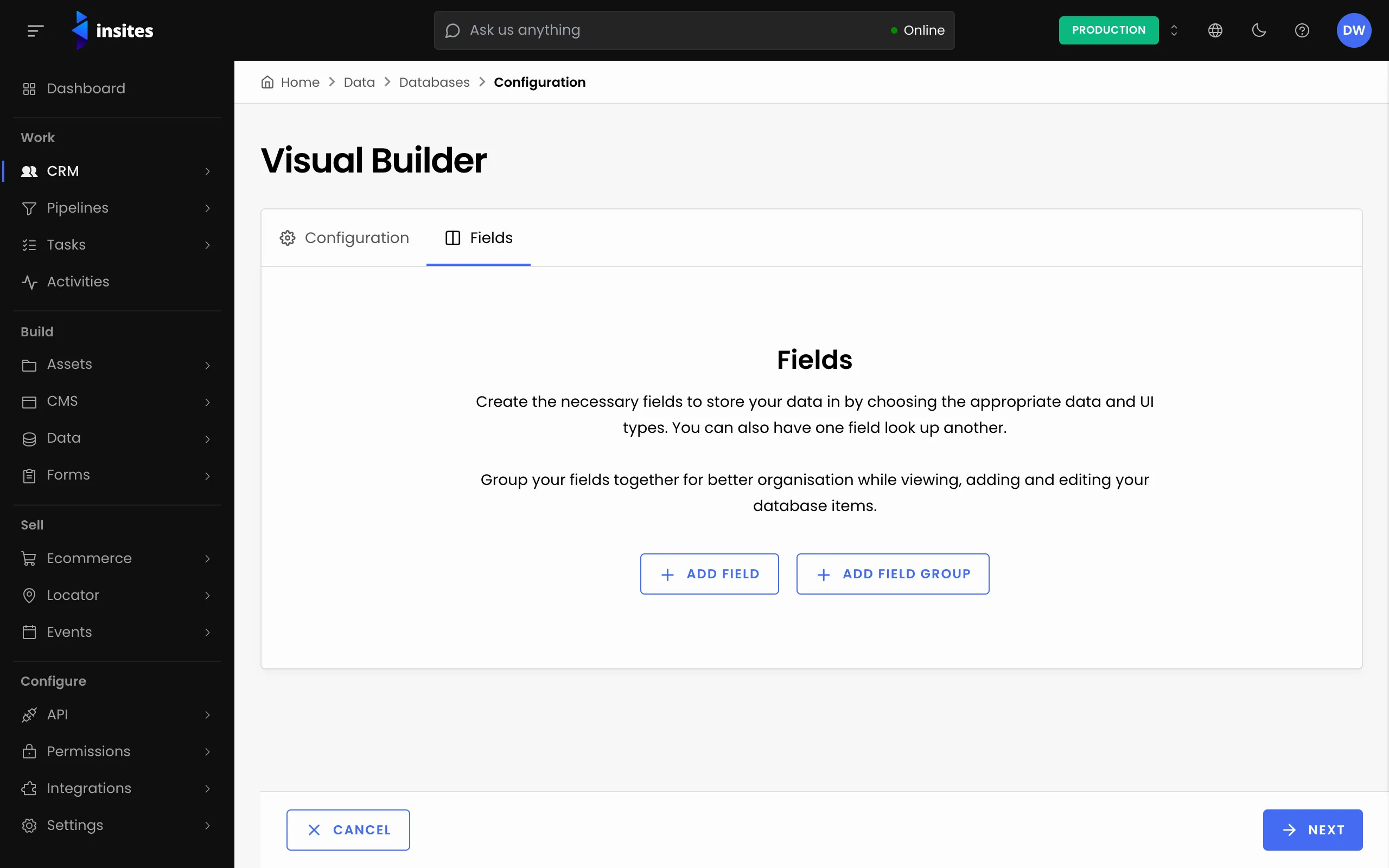
- In the Site Admin, select Data, then Databases, and open the database that will point. Here that is
Staff Members. - Open the Fields tab and click Add Field.
- Enter a Field Name, such as
Office. - For Field Type, choose Data Source if each item links to one office. Choose Data Source (Multiple) if an item can link to several.
- For UI Element, choose Search to type and search, or Select to pick from a list.
Choose what the field links to
- Open Data Source. The list is grouped. Your own databases are under Databases. CRM records are under CRM. Locator and Ecommerce records are also listed when those modules are in use.
- Choose
Offices. - For Display Field, choose
Office Name. This is the value the admin shows for the linked item. - Click Save Field, then Save on the database.
Note
The field stores the ID of the linked item, not its name. If the linked item has no value in the display field, the admin shows its ID instead.
Link an item
Open a staff member, or click Add Item. The Office field now lets you search for or pick an office. Save the item. The items list shows the office name in that column.
Read the link in code
Developers can follow the link in a GraphQL query with related_record. The field on the staff member holds the office ID, so the query joins on that field.
app/graphql/staff_members/with_office.graphql
query staff_with_office {
  records(
    per_page: 20
    filter: { table: { value: "modules/ins_databases/staff_members" } }
  ) {
    results {
      id
      name: property(name: "name")
      office: related_record(
        table: "modules/ins_databases/offices"
        join_on_property: "office"
      ) {
        office_name: property(name: "office_name")
      }
    }
  }
}
Use the Database Table Path of each database and the Database Column Name of each field. Both are shown in the admin.