Site · Forms
Show fields only when they apply
Last updated 18 November 2026Applies to Forms v6.1
Show a field only when another answer calls for it.
When you finish this guide, a field on your form appears only when another answer calls for it. For example, a Company name field shows only when a visitor answers Yes to Are you enquiring for a business?. Shorter forms are easier to finish.
You need a form built in the Form Builder, with both fields switched on in the Fields tab.
Add a condition to a field
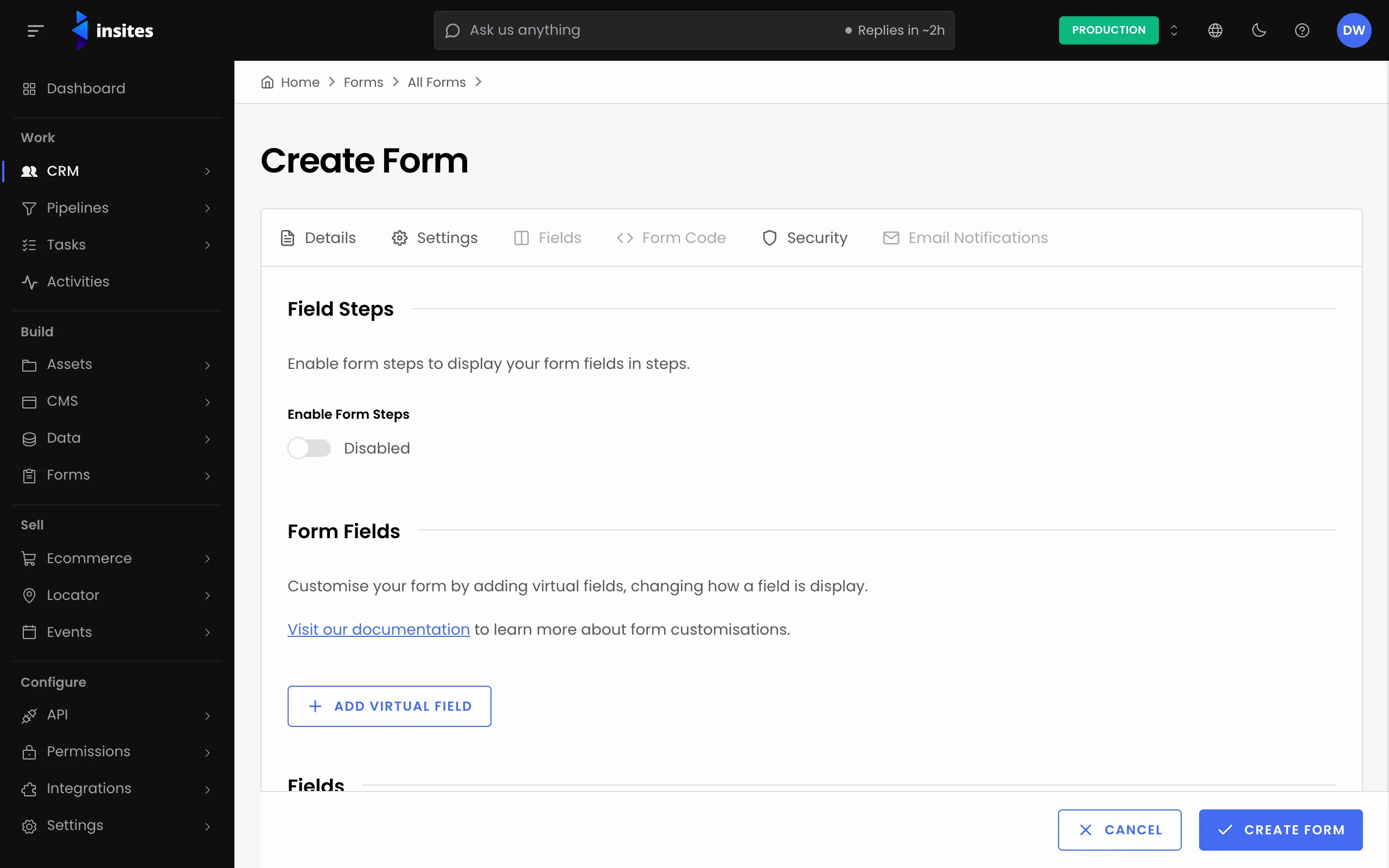
- Go to Forms > All Forms, open your form, and open the Fields tab.
- Find the field you want to hide until it applies, and select Edit.
- In the panel, scroll to Conditional Visibility and switch on Enable Conditional Visibility.
- In Trigger Field, choose the field whose answer decides. You can choose any other field on the form.
- In Condition, choose how to compare the answer, for example Is.
- In Value, enter or pick the answer that shows the field.
- Select Save to close the panel.
A small icon in the field list marks each field that has conditions. Hover over it to see them.
Which conditions you can use
The Condition list depends on the type of the trigger field:
- Every type offers Is Answered and Is Not Answered, except a yes/no field. For these two, there is no Value to fill in.
- A yes/no field offers Is only.
- A file upload, HTML, Markdown, code, phone or link field offers only Is Answered and Is Not Answered. So does a lookup to another database.
- A select, radio, card select or color field adds Is and Is Not.
- A number field adds Is, Is Not, Greater Than and Less Than.
- A date, date and time, or time field adds Is, Is Not, Is After and Is Before.
- A plain text field adds Is, Is Not, Contains, Starts With and Ends With.
- A multiple select or other list field also offers Contains. A table or multiple-file field offers only Is Answered and Is Not Answered.
Combine conditions
Select Add Another Condition to add a second rule. From the second condition on, a Logic Operator appears:
- And shows the field only when all the conditions are met.
- Or shows the field when any of the conditions is met.
To drop a rule, select Remove Condition under it.
Save and check
Open the Form Code tab and select Generate Form Code. You must do this after any change to the fields, or you cannot save. Then select Save.
Tip
Select Preview Form and try each answer, to check that the field appears and disappears as you expect.
Note
To make a field required, add a validation rule in the same panel, under Validation Rule.
Where to go next:
- Conditional Visibility: the reference for this panel.
- Fields: everything on the Fields tab.
- Forms: everything the Forms module does.