Site · Assets
See what is using your storage
Last updated 18 November 2026
Use the Assets reports to find the files, folders and types that take up the most space.
When you finish this guide, you know how much storage your files use, how fast it grows and which files take the most space.
Open the reports
Go to Assets > Reports. If you have not uploaded anything yet, the page says No assets yet and offers Upload Assets.
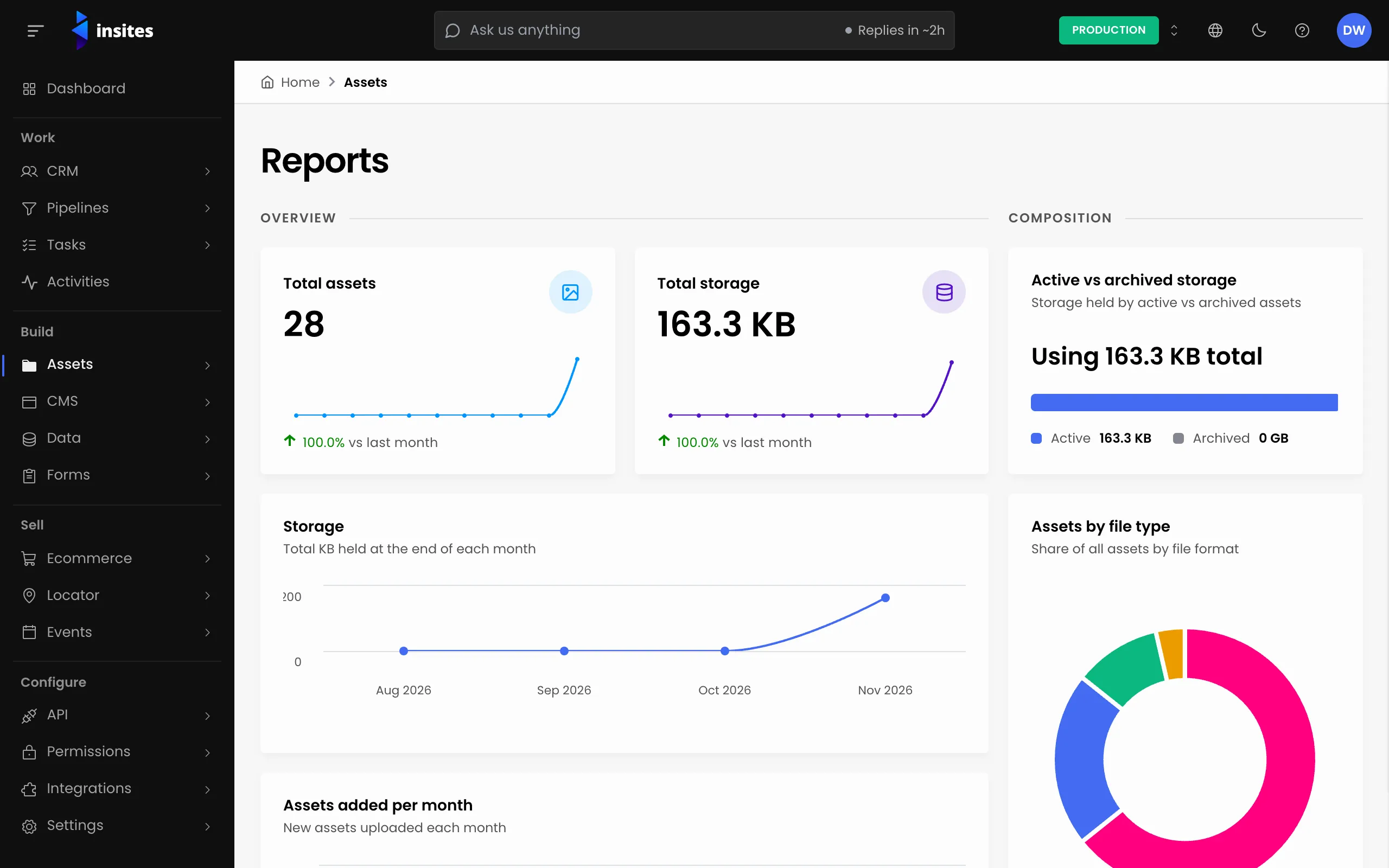
Read the overview
- Total assets and total storage, each with the change against last month.
- Active vs archived storage shows how much space your archived files still hold.
- Storage shows the total at the end of each month.
- Assets added per month shows how many new files arrive each month.
- Assets by file type groups files into JPEG, PNG, PDF, MP4, DOCX, SVG, ZIP and Other.
Find what is largest
The rankings show where the space goes:
- Top 10 largest assets
- Storage by folder (top 10)
- Top 10 folders by asset count
- Top 10 tags
- Uploads by administrator
Free up space
- Note the large files or folders from the rankings.
- Go to Assets > All Assets and find them.
- Delete the files you no longer need.
Note
Archived files still count toward your storage. They appear as archived storage in the report. Only deleting a file frees its space.