Site · Assets
Let visitors upload files with a form
Last updated 18 November 2026
Add a file field to a form so visitors can send you documents and images.
When you finish this guide, visitors can attach a document or an image when they fill in a form on your site.
You add the file field in the form builder. The upload rules you set in Assets decide which files are accepted.
Add a file field
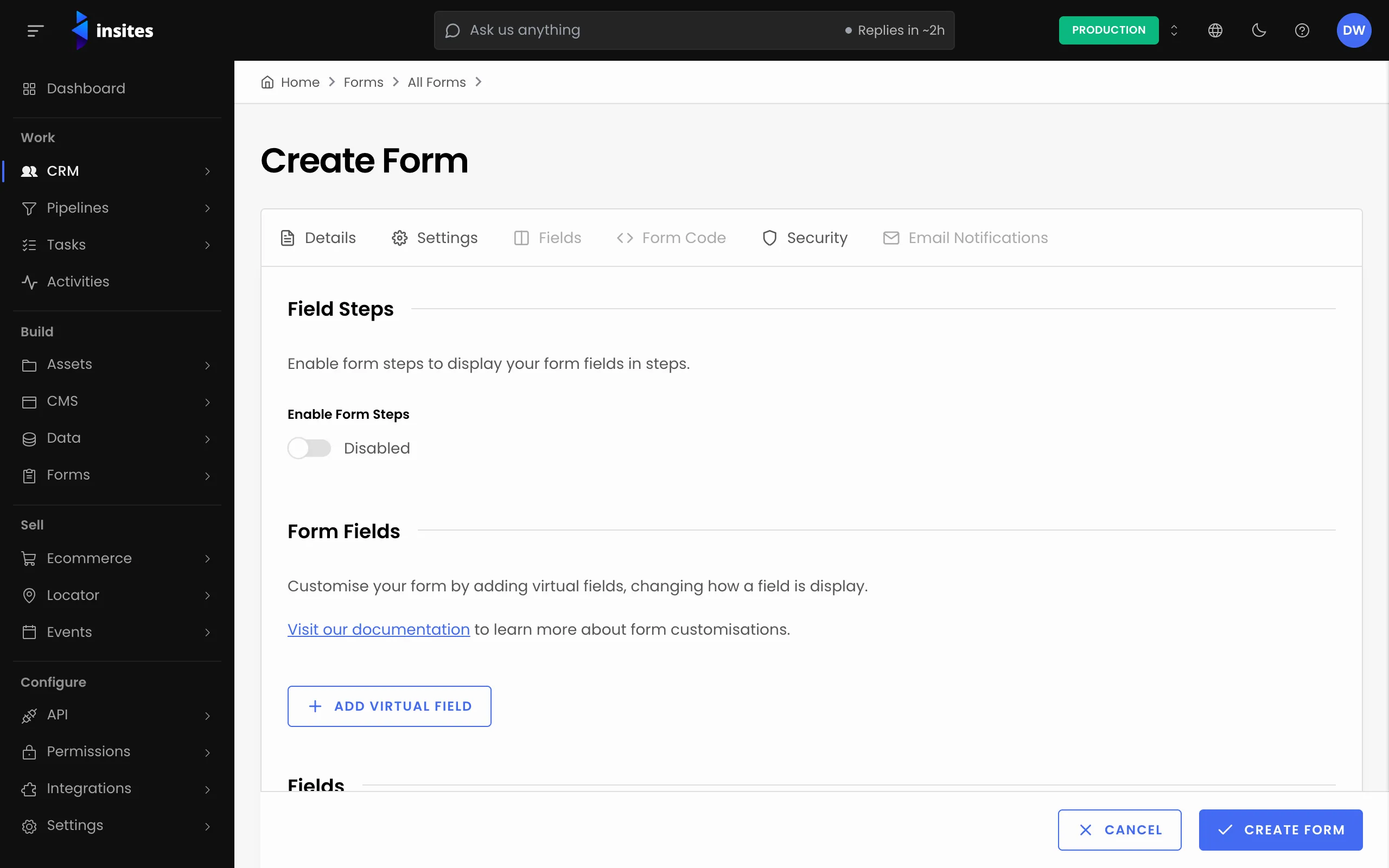
- Open your form in the form builder. If you do not have one yet, see Build a form.
- Add a field and choose the field type Media.
- Choose how it shows: Media - File for documents, or Media - Image for pictures.
- Save the field and the form.
Tip
Use Media rather than the older File or Image field types. The form builder marks those as deprecated.
Put the form on your page
Copy the form’s code into your page, as you would for any form.
What visitors can upload
- Your upload rules decide which file types are accepted by extension. Set them in Set what people may upload.
- Each file can be up to 10 MB. If the maximum file size in your Assets upload rules is smaller, that limit applies.
- When the browser says what kind of file it is, that must match the extension. A
.pdfthat the browser reports as an image is refused.
A refused file gets a short reason, such as file type .exe is not allowed.
Note
A form can only receive files into its own file fields. Nobody can use your form to upload a file anywhere else on your site.