Site · Ecommerce
Add a product with options and variants
Last updated 18 November 2026Applies to Ecommerce v6.1
Create a product, give it options such as size or color, and add a variant for each combination with its own SKU, stock and price.
By the end of this guide you have one product with options, such as size and color, and a variant for each combination you sell. Each variant has its own SKU, stock level, price and shipping details.
Ecommerce is the backend for your store. It holds your products, carts and orders. Your storefront reads them and decides how to show them.
Before you start
- You can open the Site Admin and the Ecommerce module.
- If you sort products into categories, create the categories first. See Categories.
Create the product
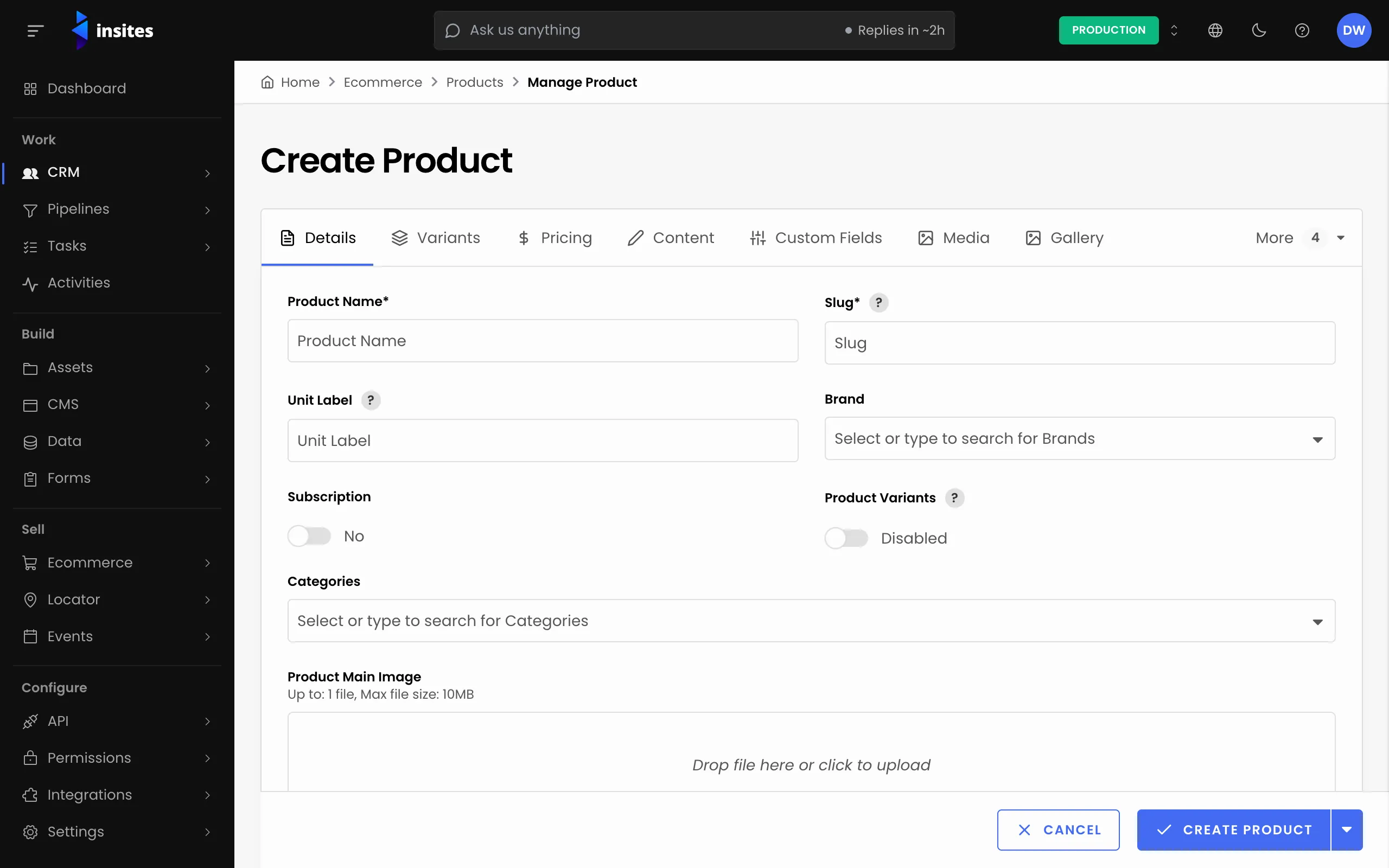
- Go to Ecommerce and then Products, and click Create Product.
- On the Details tab, enter the Product Name. Check the Slug. It is the last part of the product's web address and must be unique.
- Choose the Categories and, if you use them, a Brand and a Unit Label, such as
eachorpair. - Turn on the Product Variants toggle.
- Under Inventory, choose what should happen When Out of Stock: show the product but block purchase, show it and allow pre-orders, or hide it.
Add the options
An option is a choice the shopper makes, such as Size. Its values are the answers, such as Small, Medium and Large.
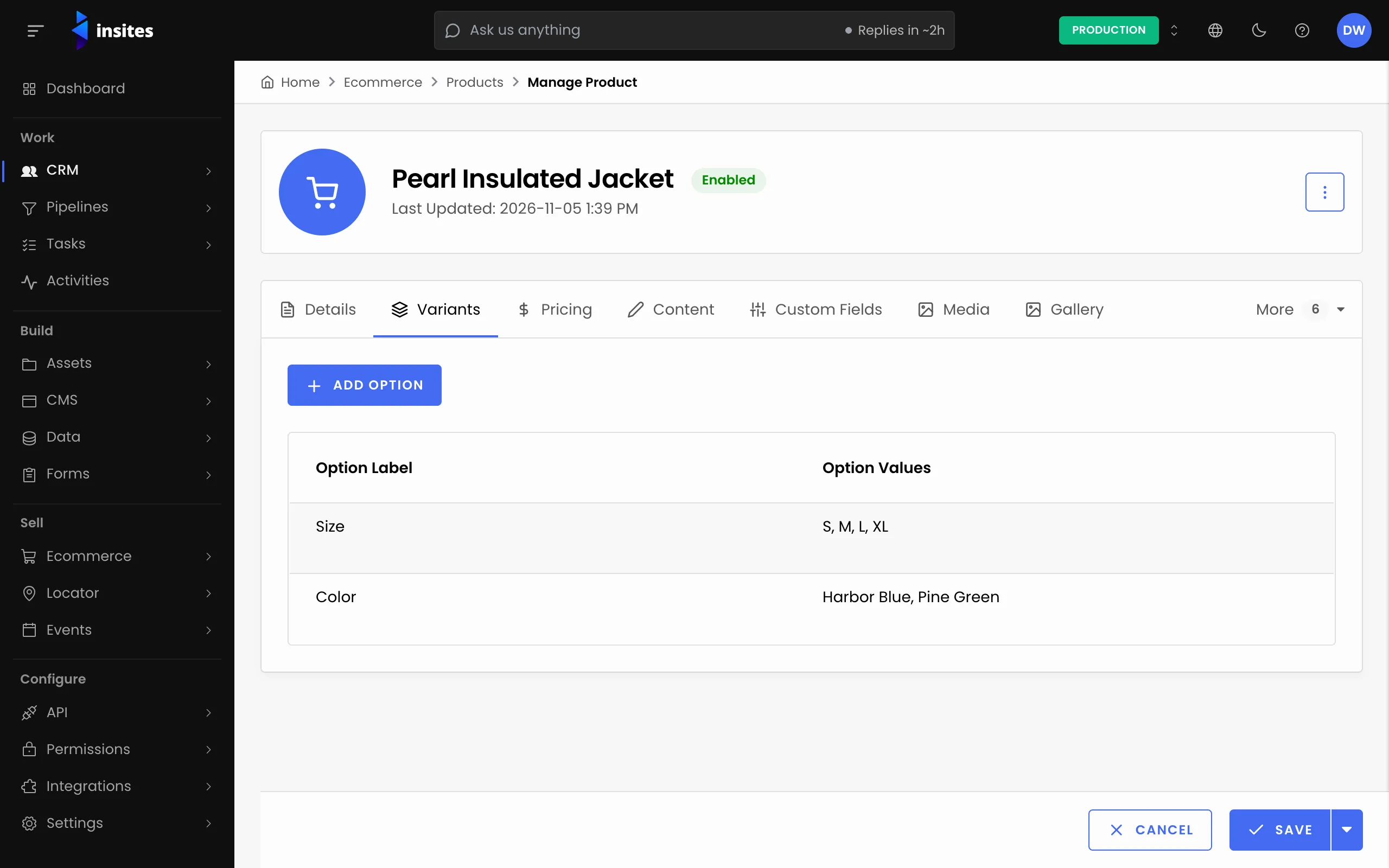
- Open the Variants tab and click Add Variant Option.
- Enter the Option Label, for example
Size. - Add each value under Option Values, for example
Small,MediumandLarge. - Click Add Option. Repeat for each option, such as
Color.
Set the price and add each variant
- Open the Pricing tab. Enter the Product Price and, if the product is on sale, the Sale Price.
- Choose the tax type, percentage or fixed amount, and enter the tax. Tick the box if a price already includes tax.
- Under Product Variants, click Add Variant.
- Pick a value for each option, then enter the Variant SKU. The SKU is required.
- Enter the Stock Level, the Variant Price and any Sale Price, Cost Price or Compare-at Price.
- Under Shipping Measurements, enter the Freight Amount, or turn on Free Shipping, and the shipping size and weight.
- Click Add Variant. Add one variant for each combination you sell.
Tip
The variant form shows the profit, markup and margin for the price you enter, so you can check the numbers before you save.
Save the product
Click Create Product. The product opens with its tabs, and you can come back to edit any variant from the Pricing tab.
Stock in the admin
The stock level is not enforced when you add a product to an order or quote in the Site Admin. Your storefront decides how to use it.