Site · Ecommerce
Create a discount code
Last updated 18 November 2026Applies to Ecommerce v6.1
Create a discount code for a fixed amount, a percentage or shipping, limit how often it is used, and choose which products or categories it applies to.
By the end of this guide you have a working discount code. You choose what it takes off, how often it can be used, and which products or categories it covers.
Create the discount
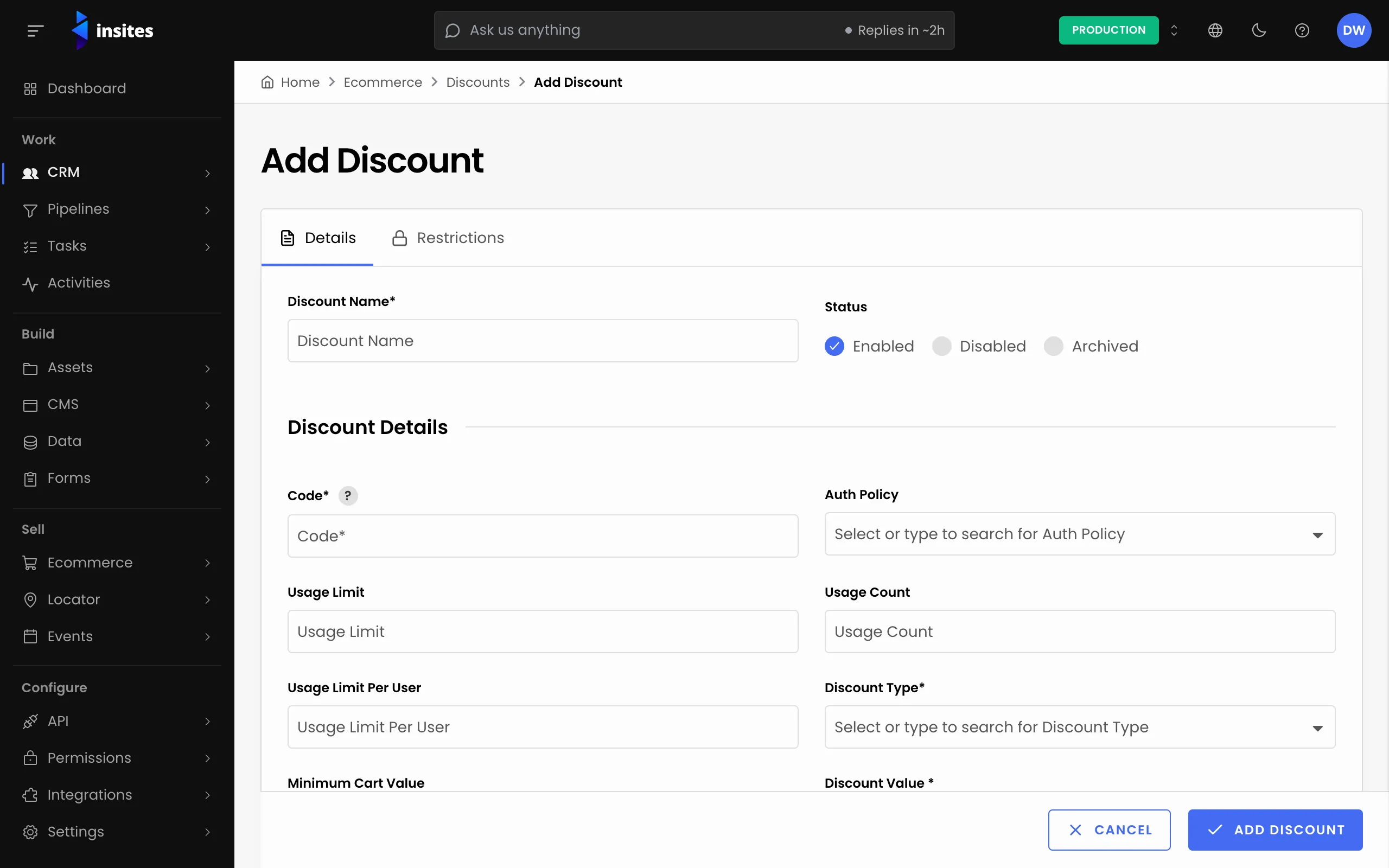
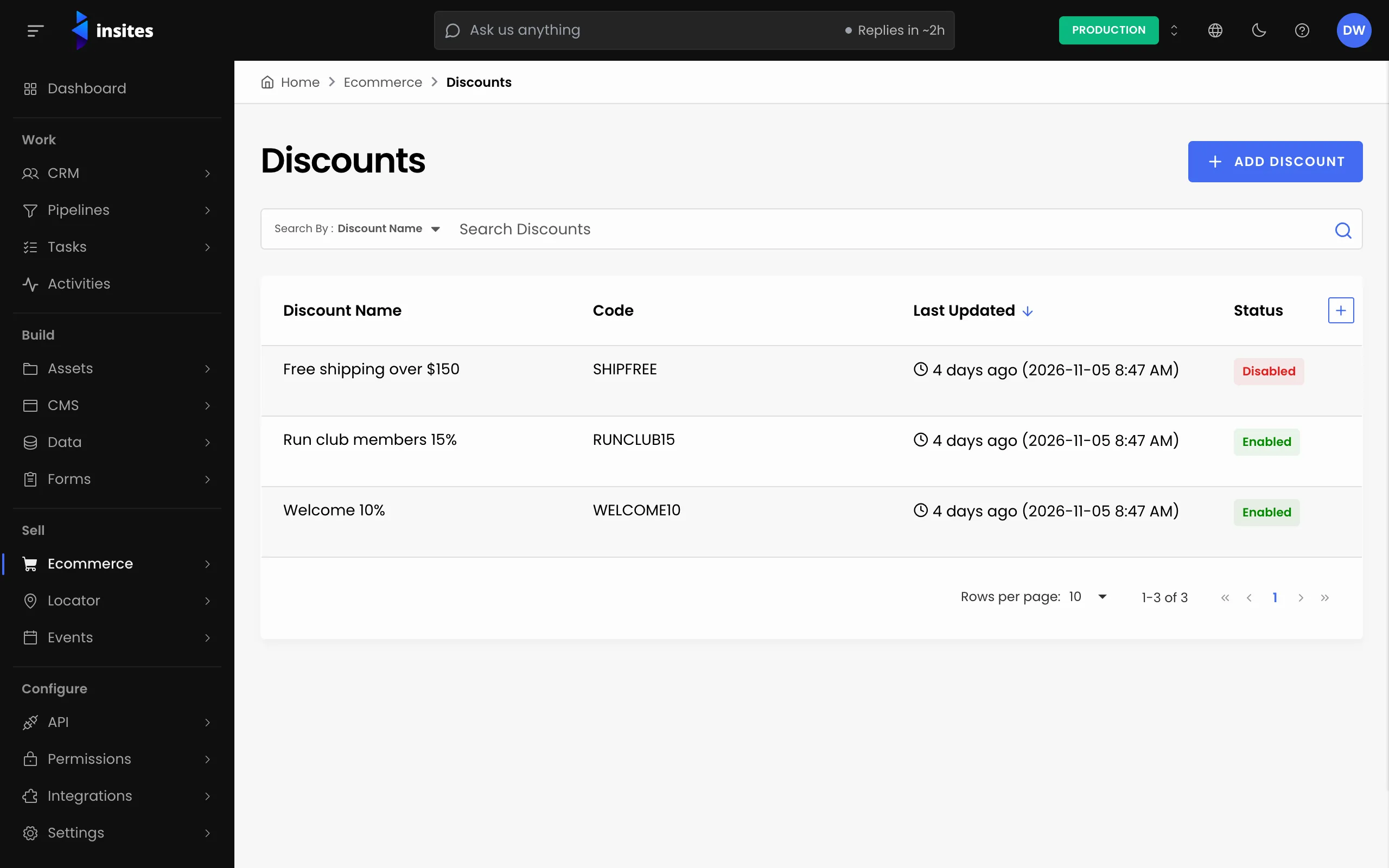
- Go to Ecommerce and then Discounts, and click Add Discount.
- On the Details tab, enter a Discount Name.
- Leave the Status as Enabled.
- Enter the Code that shoppers type, for example
SPRING10. Each code must be unique.
Choose the type and value
Pick a Discount Type:
| Type | What it takes off |
|---|---|
| Fixed Amount | A set amount |
| Percentage | A percentage of the price |
| Free Shipping | The shipping cost |
| Fixed Shipping Discount Amount | A set amount off shipping |
| Percentage Shipping Discount Amount | A percentage off shipping |
Then enter the Discount Value. For a percentage type, enter the percentage.
Set the limits
- Minimum Cart Value: the cart must reach this amount before the code works.
- Usage Limit: how many times the code can be used in total.
- Usage Limit Per User: how many times one shopper can use it. You set this when you create the discount; you cannot change it later.
- Auth Policy: pick a policy if only some people may use the code.
Choose what it applies to
- Open the Restrictions tab.
- Under Applicable To, choose Products or Categories.
- Turn on Applicable to All Products (or Applicable to All Categories), or leave it off and pick the ones you want.
- Click Add Discount.
Where the code is checked
The discount lives in Ecommerce. Your storefront looks it up when a shopper enters the code. The Ecommerce add-on template does this for you.
Pause or retire a code
Open the discount and change its Status to Disabled to pause it, or Archived to retire it.