Site · Ecommerce
Set up shipping
Last updated 18 November 2026Applies to Ecommerce v6.1
Choose your measurement units, add the freight suppliers you ship with, and set shipping costs and sizes on each product variant.
By the end of this guide your store knows how you ship. Your units are set, your carriers and their services are listed, and each variant carries its shipping cost and size.
Set your units
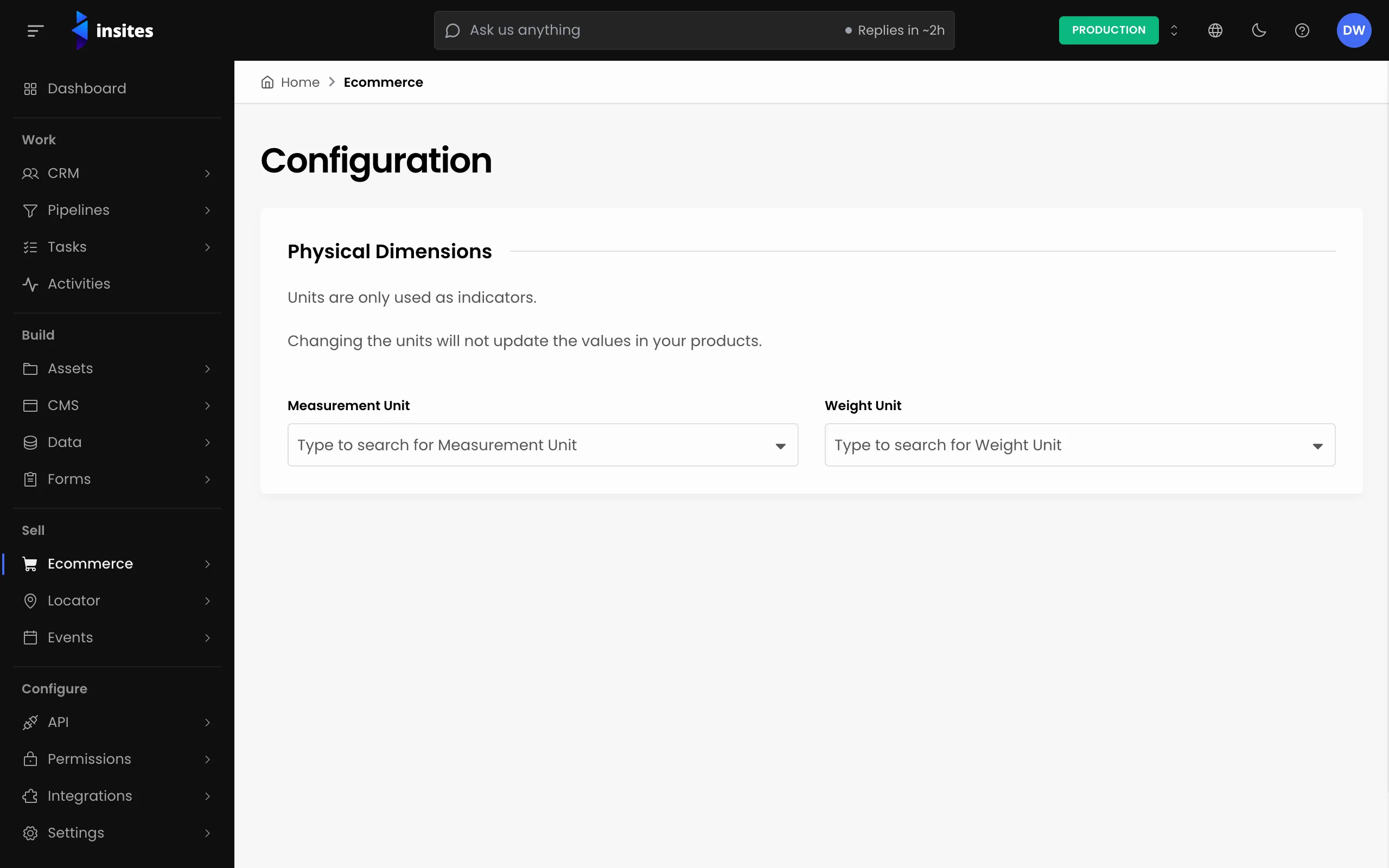
- Go to Ecommerce and then Configuration.
- Under Physical Dimensions, choose the Measurement Unit and the Weight Unit.
- Click Save.
Add your freight suppliers
A freight supplier is a carrier you ship with.
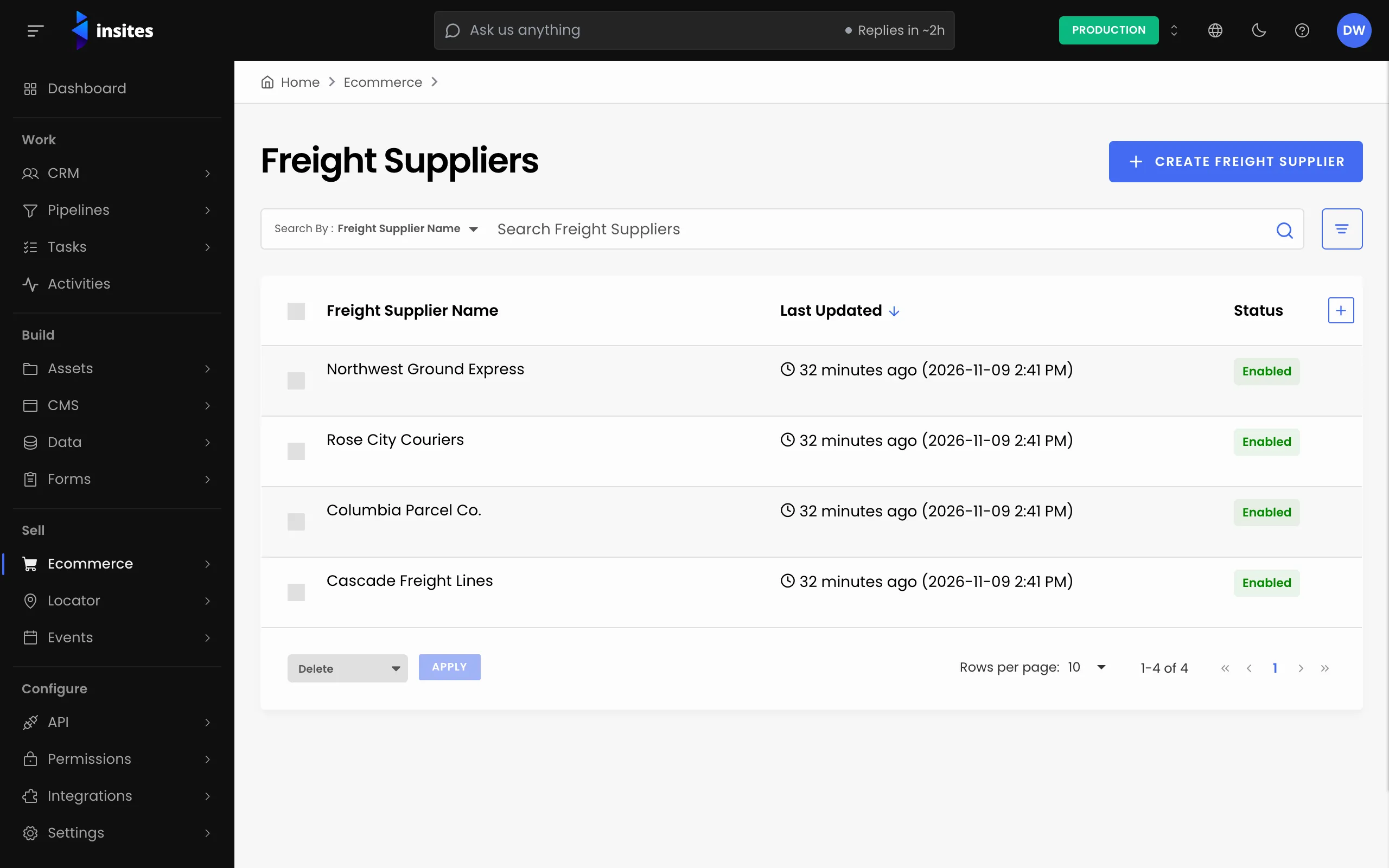
- Go to Ecommerce and then Freight Suppliers, and click Create Freight Supplier.
- Enter the Freight Supplier Name.
- Add the Freight Methods you use with them, for example
RoadorAir. - Add the Freight Options, for example
StandardorExpress. - Enter the carrier's Tracking Link.
- Click Create Freight Supplier. Repeat for each carrier.
Set shipping on each variant
- Open a product and go to the Pricing tab.
- Edit a variant. Under Shipping Measurements, enter the Freight Amount, without tax.
- Turn on Free Shipping if this variant ships free.
- Enter the Shipping Length, Shipping Width, Shipping Height and Shipping Weight.
- Click Save.
How shipping is charged
Your storefront works out the shipping charge. The Ecommerce add-on template charges the freight amount for each item in the cart, and nothing for a variant with free shipping.
Offer a shipping discount
To take money off shipping, create a discount with a shipping type. See Create a discount code.