Site · Ecommerce
Process and fulfill an order
Last updated 18 November 2026Applies to Ecommerce v6.1
Work an order from placed to completed: check payment, confirm the shipping address, pack it into shipping packages with tracking, and update its status.
This guide takes one order from placed to completed. You check the payment, confirm where it goes, pack it, record the tracking code, and close it.
Open the order
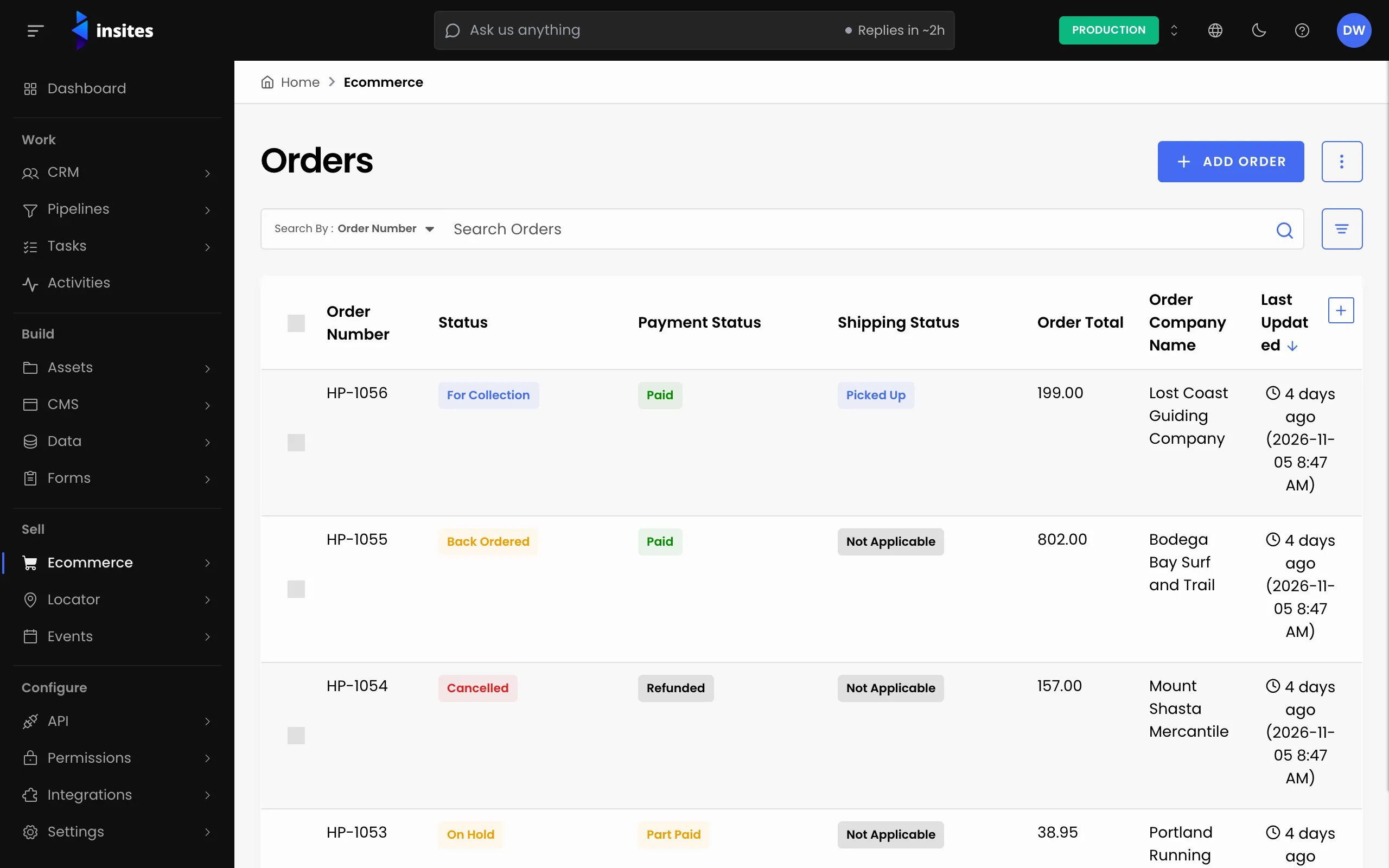
- Go to Ecommerce and then Orders, and open the order.
- Check the Order Value card: subtotal, tax, shipping, discount and order total.
- Check the Items tab to see what was ordered.
Confirm the payment
Open the Payments tab. A payment with the status Paid is ready to fulfill. If the shopper paid another way, click Add Payment and record it.
Mark the order as processing
- On the Order Details card, click Edit.
- Set the Order Status to Processing and click Save.
Confirm where it ships
Open the Shipping tab. Check the Shipping Contact and the Shipping Address. You can add or edit either, or pick a contact or company from the CRM.
Pack it into shipping packages
- On the Shipping tab, click Add Shipping Package. Once the order has a package, the button reads Create Shipping Package.
- Enter a Package Name and set the Package Status, for example Packed.
- Under Freight Details, choose the Freight Supplier, the Freight Method and the Freight Option.
- Enter the Freight Tracking Code from the carrier.
- Under Package Content, choose the Items in this package.
- Click Add Shipping Package. Add more packages if the order ships in parts.
When the package leaves, edit it, set the status to In Transit and add the Package Dispatch Date. When it arrives, set Delivered and the Package Delivered Date.
Close the order
- On the Order Details card, click Edit.
- Set the Order Status to Completed and click Save.
Keep a record
Add an order note on the Notes tab for anything your team should know. The Event Stream tab shows the history of the order.
Other statuses cover the cases that do not go to plan, such as On Hold, Back Ordered, Cancelled and Refunded.