Site · CMS
Change site-wide text with globals
Last updated 18 November 2026Applies to CMS v6.0
Keep company details in one place and show them on every page.
Store your company name, slogan, contact emails, social links, locations and PO boxes in one place, then show them on any page. Change a value once and every page that uses it updates.
What globals hold
Globals are a fixed set of fields, grouped in five tabs:
| Tab | What it holds |
|---|---|
| Company Details | Company name, ID, slogan, URL, two emails, business registration, logos and icons |
| Emails | The logo and alternate logo used in emails |
| Social Links | Facebook, X, YouTube, LinkedIn, Instagram, Pinterest and two other links |
| Locations | Up to five locations, each with an address, contact details and opening hours |
| PO Boxes | PO box numbers and addresses |
Note
You cannot add your own fields to globals. For other shared text, use a partial, or a database when editors need to change it often.
Set the values
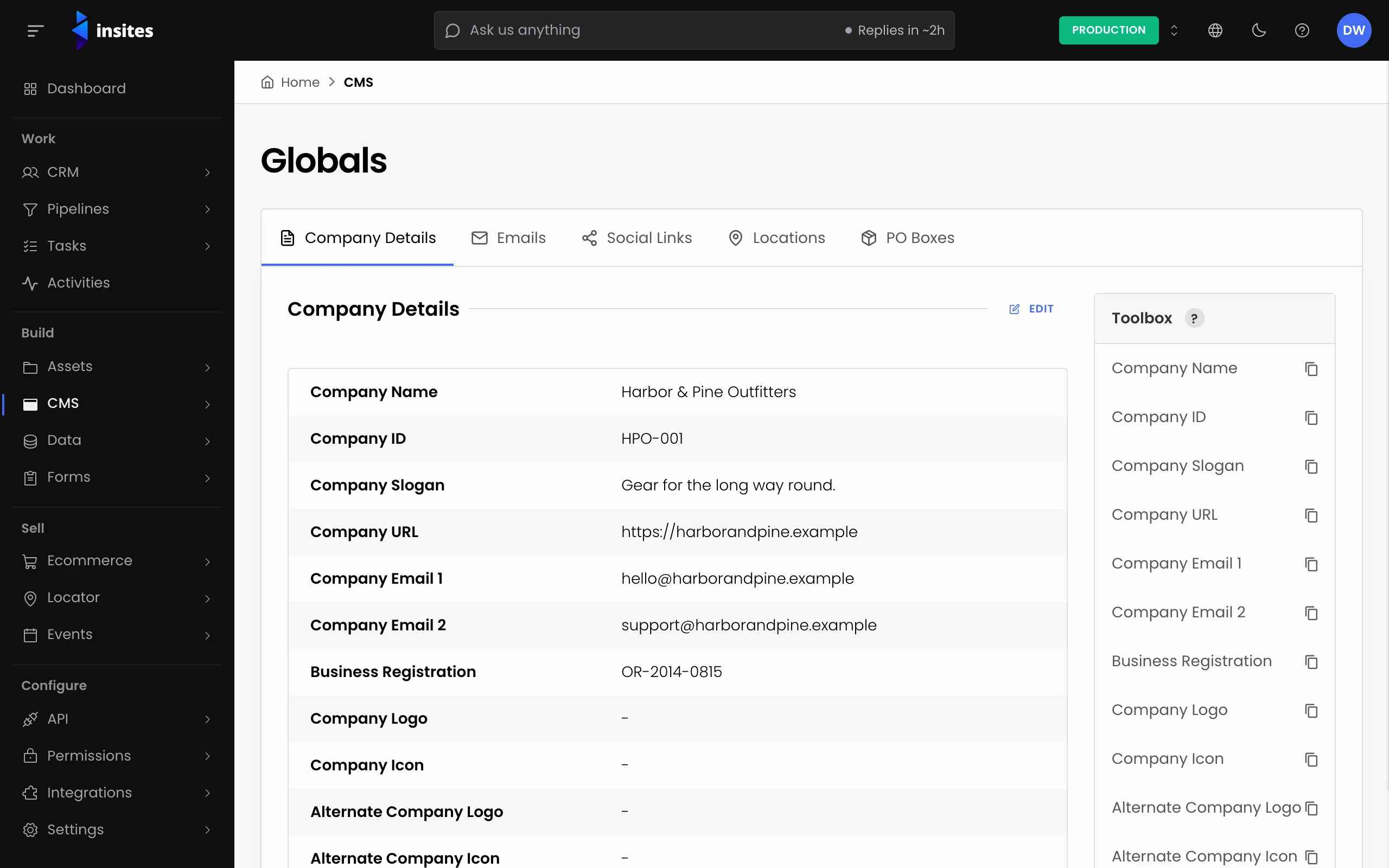
- In your site admin, open CMS and select Globals.
- Choose a tab, for example Company Details.
- Select Edit, fill in the fields and save.
Load the globals on your page
Add this line once to the layout, page or partial that shows the values. It reads the saved globals and makes them available as context.exports.global:
{%- include 'modules/insites_cms/globals' -%}Putting it in your layout makes the globals available to every page that uses that layout.
Show a value
Each tab has a Toolbox beside the form. Click a field name in the Toolbox to copy its tag, then paste it where the value should appear. For example, a footer:
Footer partial
{%- include 'modules/insites_cms/globals' -%}
<footer>
  <p>{{ context.exports.global.company_name }}</p>
  <p>{{ context.exports.global.company_slogan }}</p>
  <a href='mailto:{{ context.exports.global.company_email_1 }}'>{{ context.exports.global.company_email_1 }}</a>
</footer>
Logos and icons come out as the file address, so use them in an image tag: <img src='{{ context.exports.global.company_logo }}' alt='Logo'>.
Change the text later
Open Globals, edit the field and save. Every page that shows the tag shows the new value.