Site · CMS
Set up redirects
Last updated 18 November 2026Applies to CMS v6.0
Send visitors from an old address to a new one with a 301 or 302 redirect.
Send visitors from an old address to a new one. When you move or rename a page, a redirect keeps old links and bookmarks working.
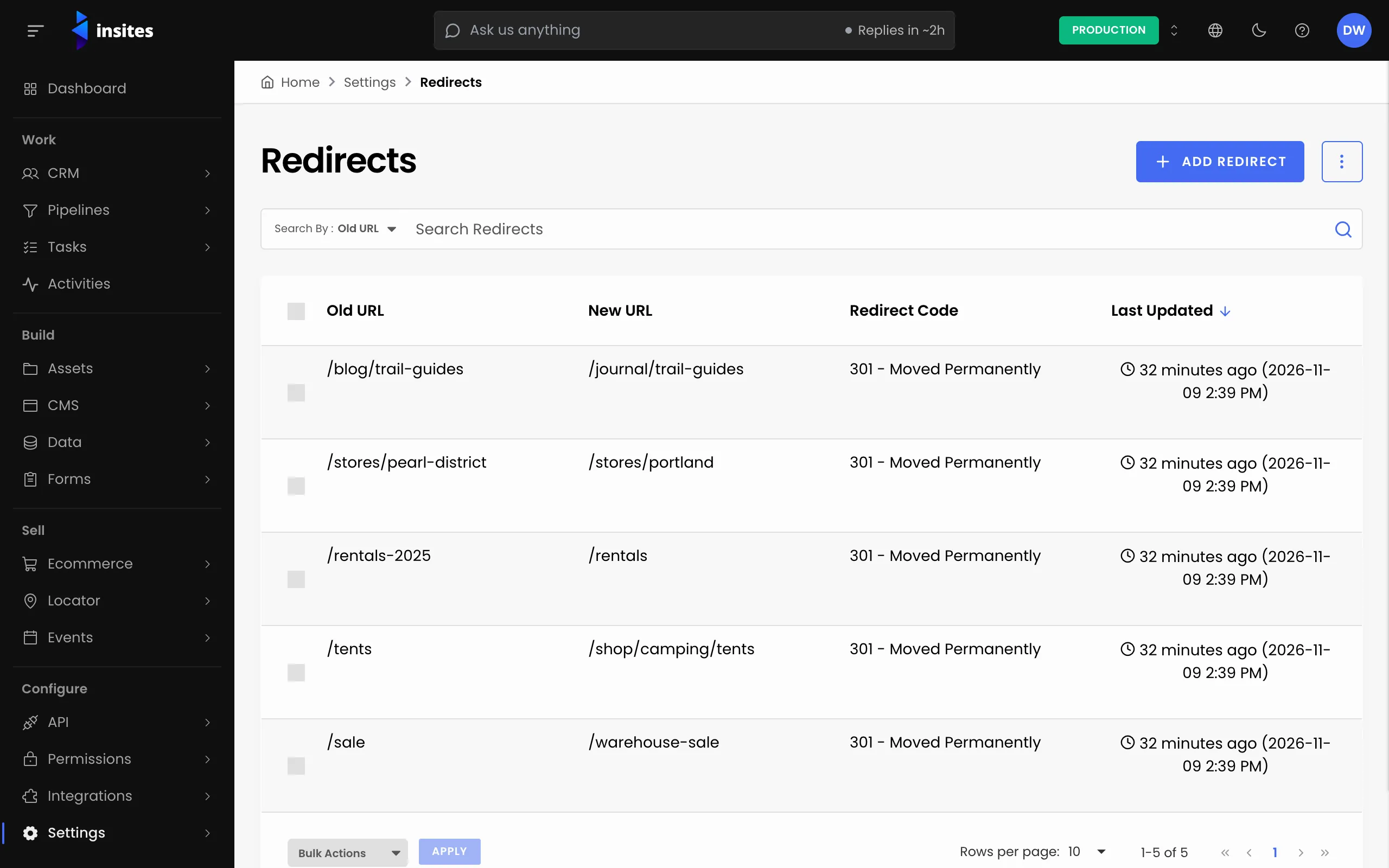
Choose 301 or 302
| Code | Use it when |
|---|---|
| 301 - Moved Permanently | The page has moved for good. |
| 302 - Moved Temporarily | The move is short term, for example while you rebuild a page. |
Redirect an existing page
Use this when the page is still in the CMS but should send visitors somewhere else.
- Open CMS, select Pages and open the page.
- On the Details tab, find the Redirect section.
- In Redirect To, enter the new address, for example
/products. - In Redirect Code, choose 301 - Moved Permanently or 302 - Moved Temporarily.
- Select Save.
Redirect an address that no longer has a page
If you renamed a page, its old address no longer exists. Create a small page at the old address that only redirects.
- In Pages, select Create Page.
- Give it a clear name, for example
Redirect items to products. - Set Page Slug to the old address, for example
items. - Fill in Redirect To and Redirect Code as above.
- Select Create Page.
Tip
Visit the old address in a private browser window to check the redirect. You should land on the new address.
Remove a redirect
Open the page, clear Redirect To, choose -- Clear option -- in Redirect Code, and save.
Collections
A collection has the same Redirect Code field on its Details tab. The CMS manages the collection's redirect target for you, so you only choose the code.