Site · CMS
List content from a collection
Last updated 18 November 2026Applies to CMS v6.0
Turn a database into a list page and a details page for each item.
Show the items of a database as a list page, with a details page for each item, without writing a query. A collection turns a database into pages, and editors keep it up to date by changing the items.
You need a database with some items in it. If you do not have one yet, see creating a database. This guide uses a database of team members with name and role fields.
Create the collection
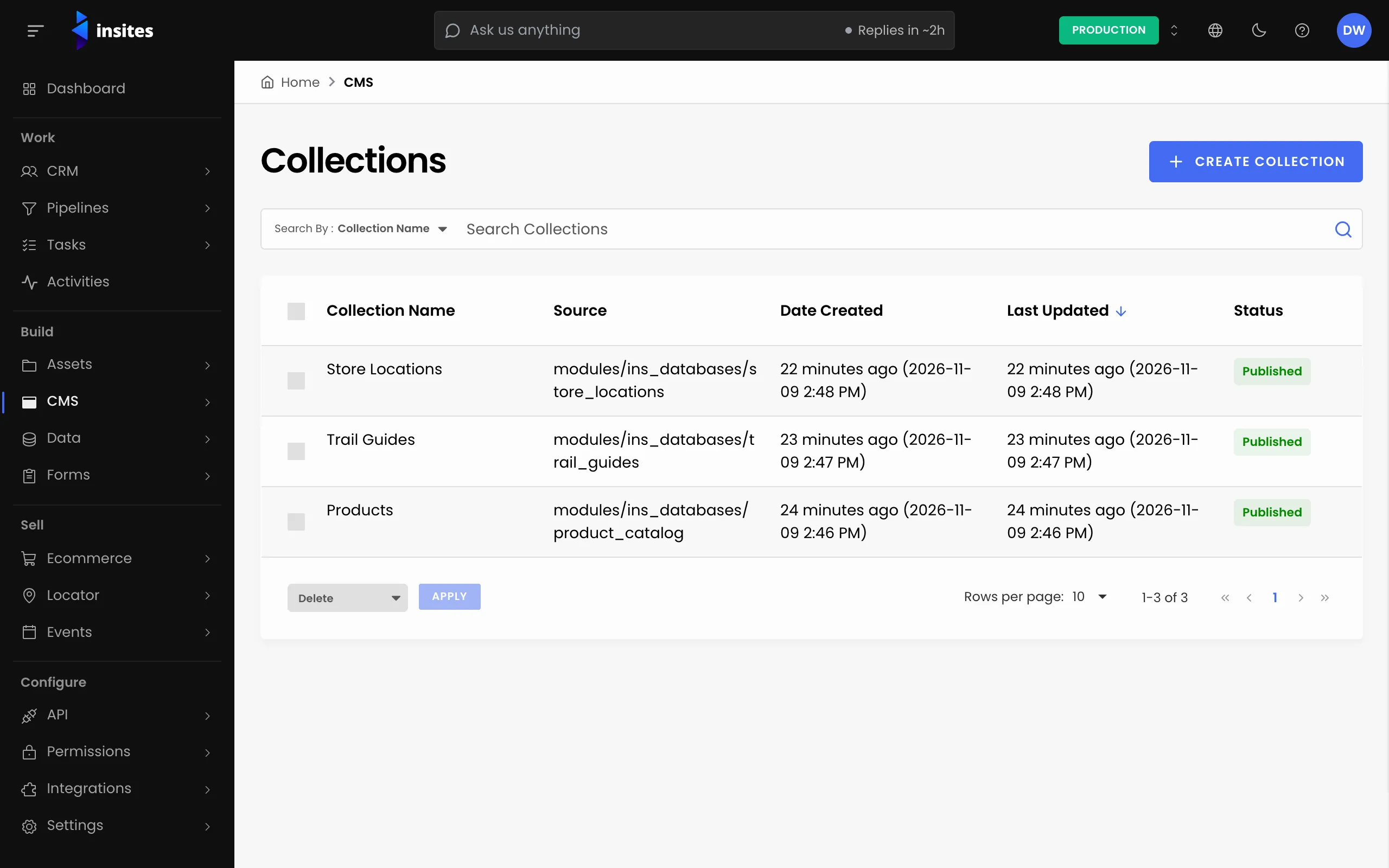
- In your site admin, open CMS and select Collections.
- Select Create Collection.
- On the Details tab, enter a Collection Name and a Collection Slug, for example
team. The slug is the address of the list page. - Choose a Layout and, in Source, the database to list.
Design the list page
Open the List Layout tab and switch List Layout to Enabled. Set a Page Title, then write the Content. The items are in context.exports.data.items, and each item's fields are under properties:
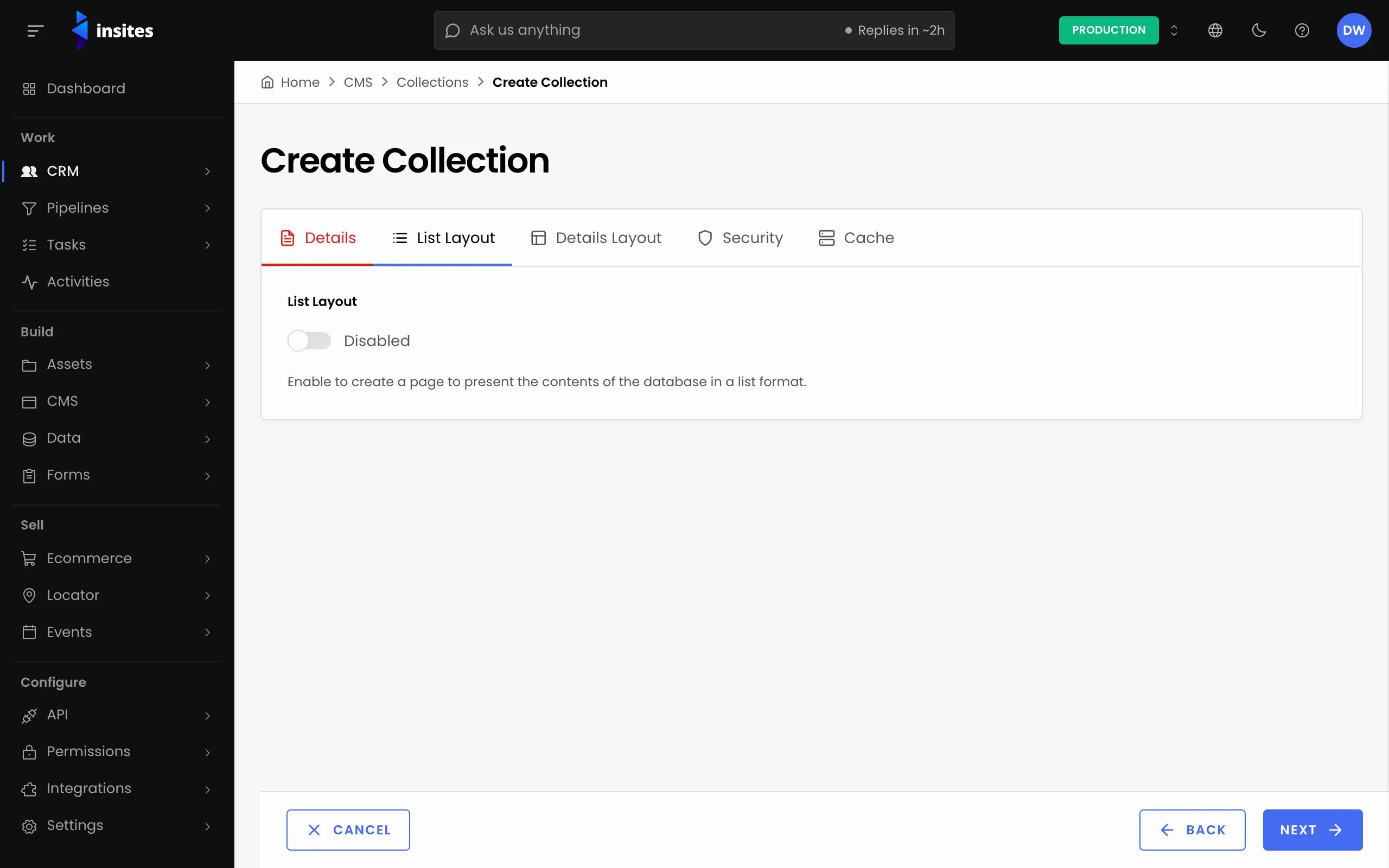
List Layout content
<h1>Our team</h1>
<ul>
  {%- for item in context.exports.data.items -%}
    <li>{{ item.properties.name }}, {{ item.properties.role }}</li>
  {%- endfor -%}
</ul>
Each item also has id, created_at and updated_at. The list shows 10 items at a time.
Design the details page
Open the Details Layout tab. The details page shows one item, in context.exports.data.item. Use the Toolbox to copy a tag for each field of your database:
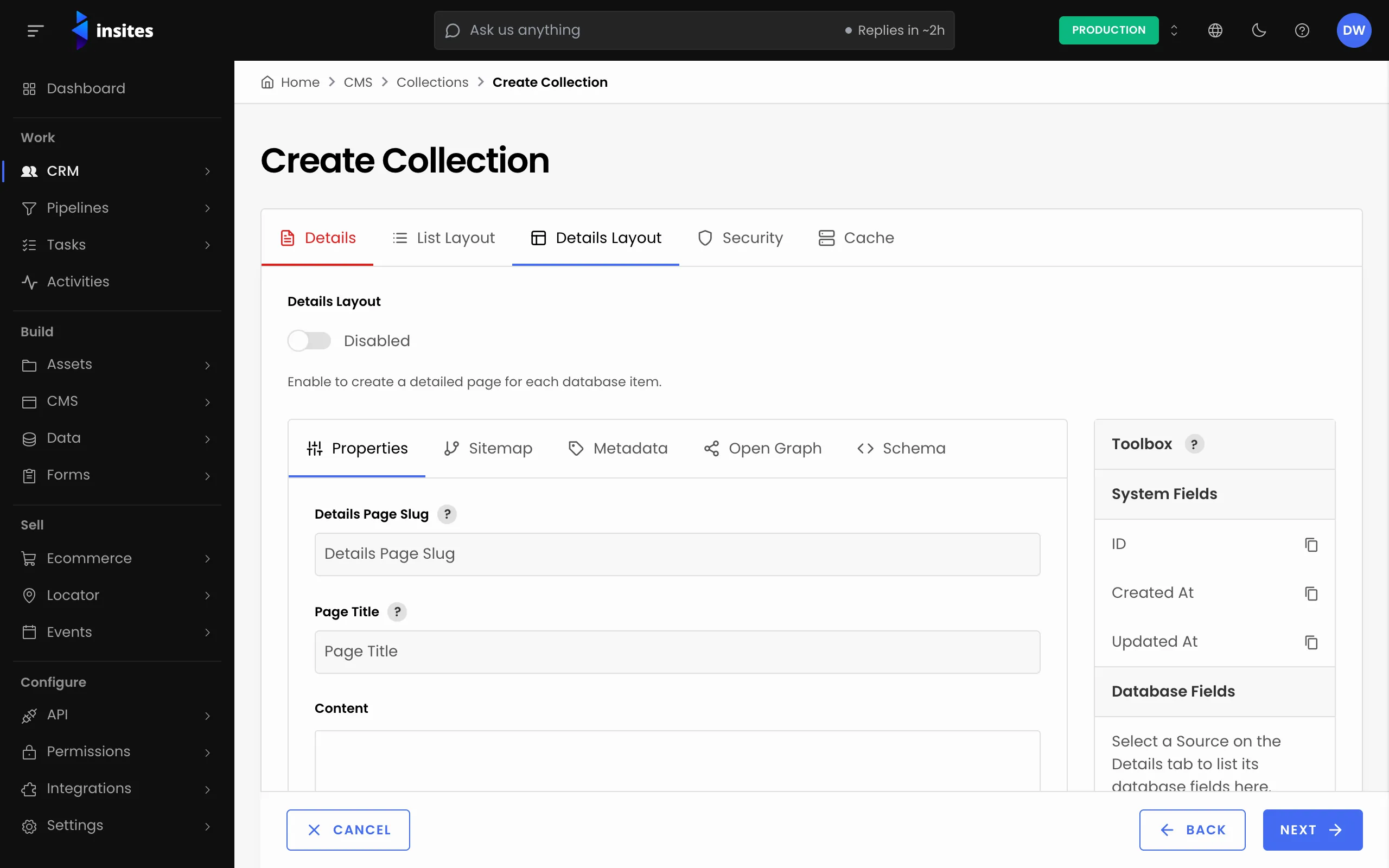
Details Layout content
<h1>{{ context.exports.data.item.name }}</h1>
<p>{{ context.exports.data.item.role }}</p>
The details layout also has its own Sitemap, Metadata, Open Graph and Schema tabs, so each item can carry its own search and sharing details.
Save and check
Select Create Collection, then open the collection slug, for example /team, to see the list.
Tip
A collection also has Security and Cache tabs, like a page.