Site · CRM
Link contacts to companies
Last updated 18 November 2026Applies to CRM v6.1
Connect people to the company they work for.
When a contact is linked to a company, you can see the person from the company's record and the company from the person's. You can make the link from either side. Choose the one that suits the job.
From the contact
Use this when you are adding or editing one person.
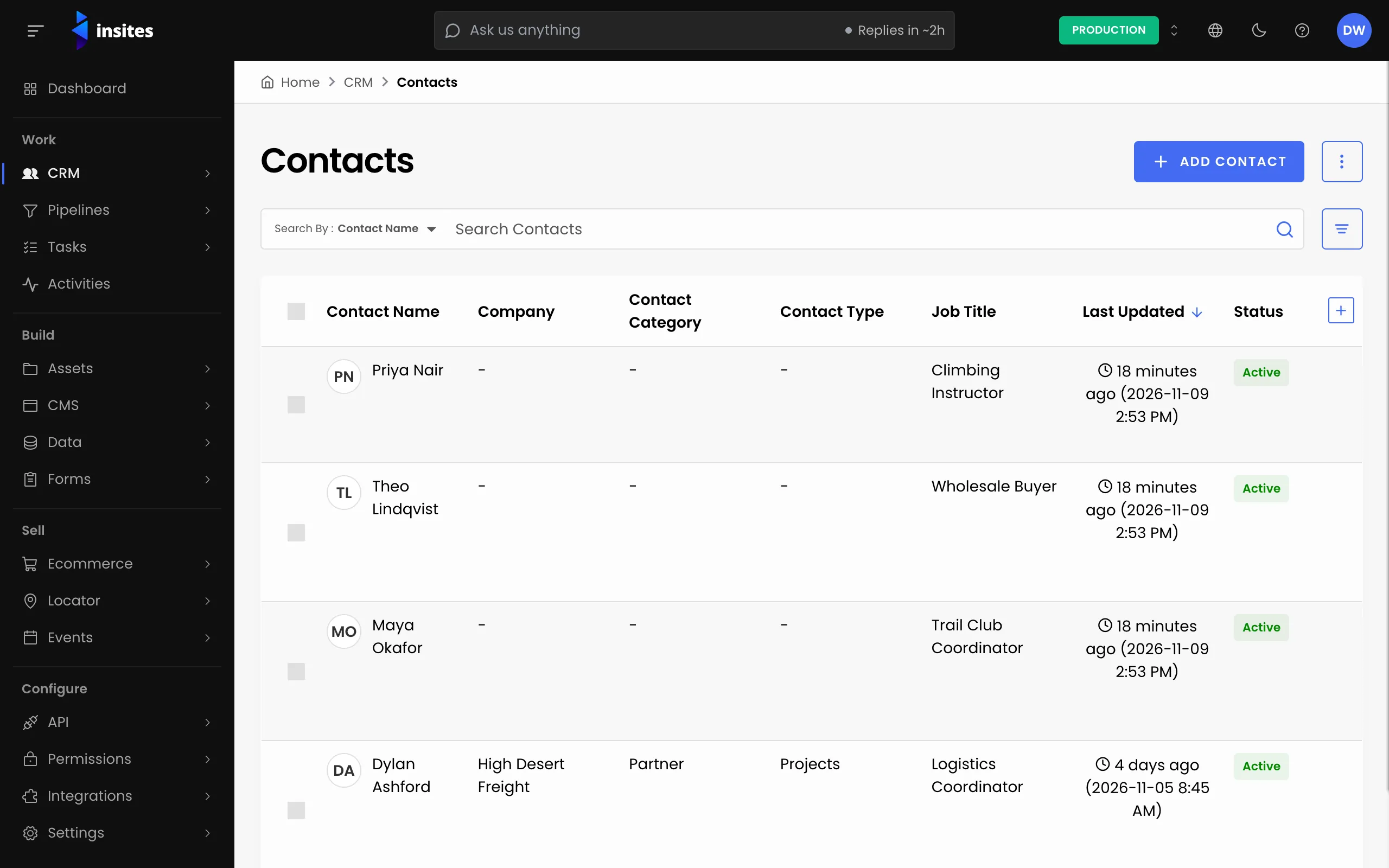
- In the admin, go to CRM > Contacts and open the contact, or select Add Contact.
- In the contact details, find the Company field.
- Start typing the company name, then pick the company from the list.
- Save the contact.
The field then links to the company, so you can open the company record from the contact.
From the company
Use this when you want to add several people to one company.
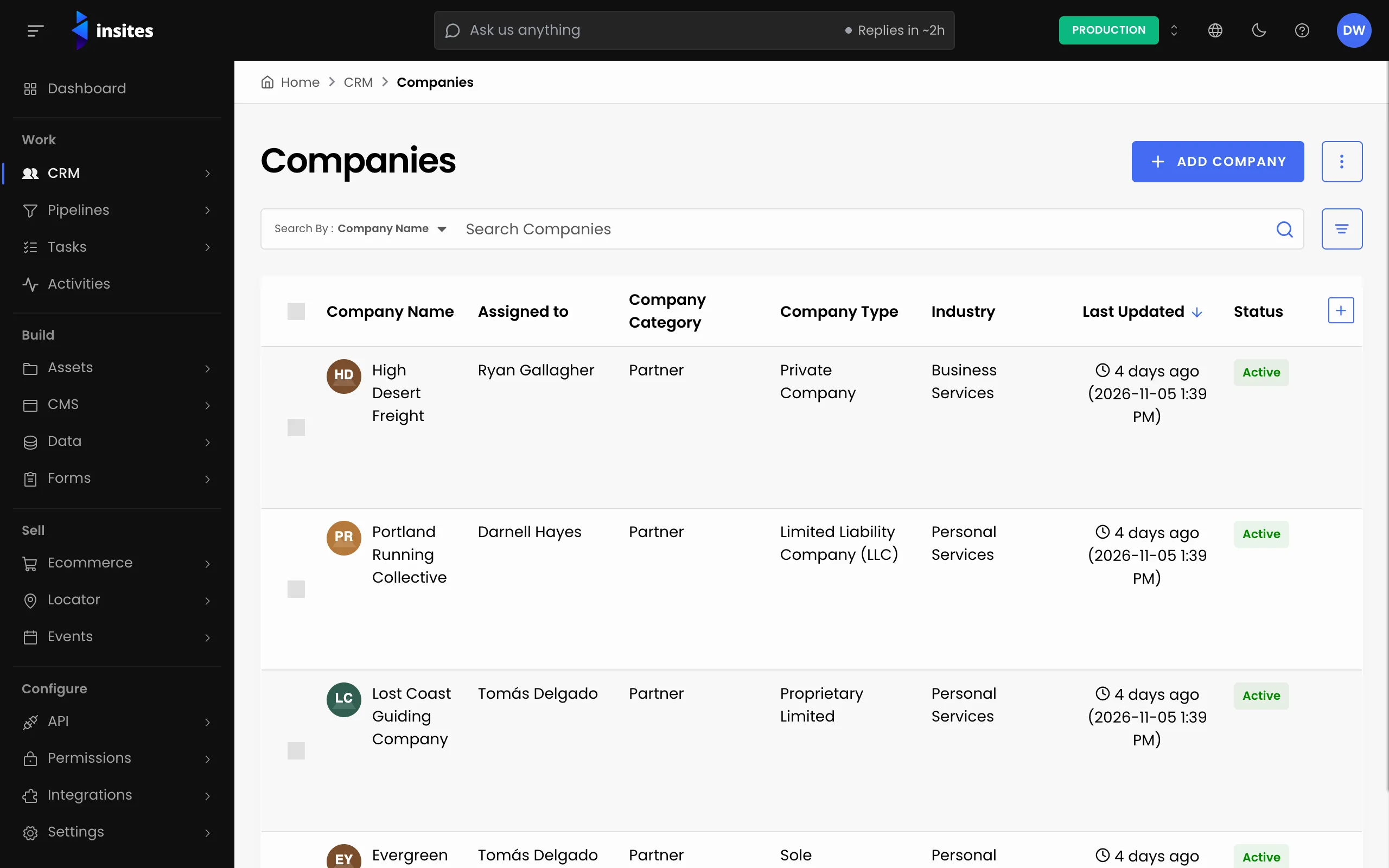
- Go to CRM > Companies and open the company.
- Select the Contacts tab.
- Select Assign contacts to pick people who are already in the CRM. Or select Create contact and assign to add a new person and link them in one go.
Insites confirms with “Contacts successfully assigned.” or “Contact successfully added and assigned.”
To unlink someone, select Remove on their row. This removes the link only.
Tip
When you add a new company, the Contacts step lets you link people while you set the company up.
A note on imports
The contact import ignores the Company Name column. Make the links with one of the methods above after you import, or update company details through the company import.