Site · CRM
Log activities and follow-ups
Last updated 18 November 2026Applies to CRM v6.1
Record calls, emails and meetings, and set a task so nothing is missed.
An activity is a record of something that happened with a contact, such as a call or a meeting. A task is something you still need to do. When you finish this guide, the contact's history shows what happened, and a task reminds you what comes next.
Log an activity
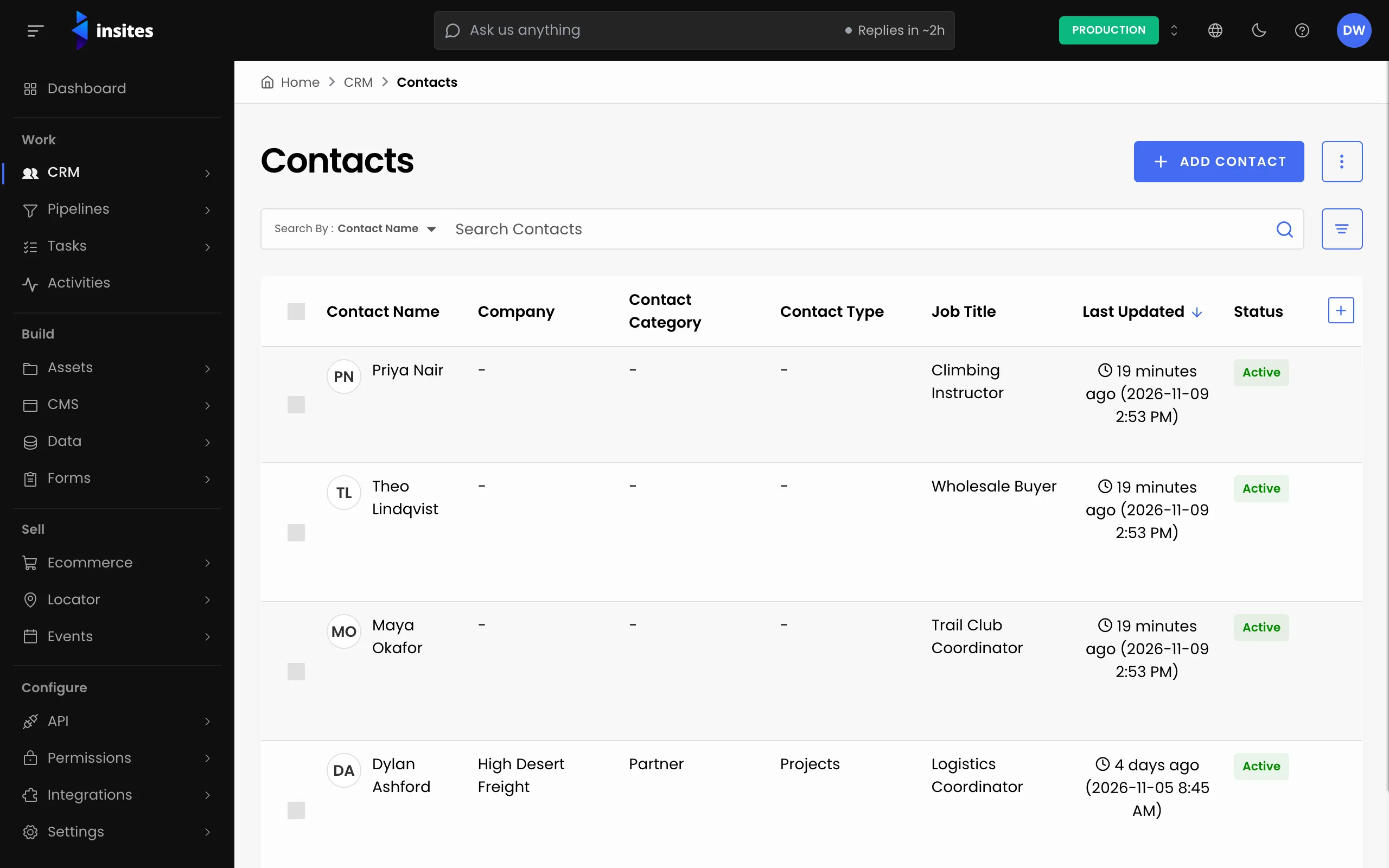
- In the admin, go to CRM > Contacts and open the contact.
- Select the Activities tab, then Add activity.
- Choose an Activity Type: Call, Chat, Email, Event, File Note, Meeting, SMS or Other.
- Set the date and time. For an event you can also set an End Date/Time. For a call, chat or meeting you can set a Duration in minutes.
- Add a Subject and what was said in Message or Notes. You can attach files under Attachments.
- If other people took part, add them under Related Contacts.
- Select Add Activity.
The activity appears on the contact's timeline. To change it later, open it from the list and select Save when you are done.
Tip
Companies have an Activities tab too. Log an activity there when it concerns the whole company rather than one person.
Add a follow-up task
- On the same contact, select the Tasks tab, then Add task.
- Type a Task Name, for example “Send the quote”.
- Add a Description if it helps.
- Choose who does it in Assigned To, and set a Due Date.
- Select Add Task.
When the work is done, select Mark as completed on the task. If you closed it by mistake, select Reopen task.
See everything in one place
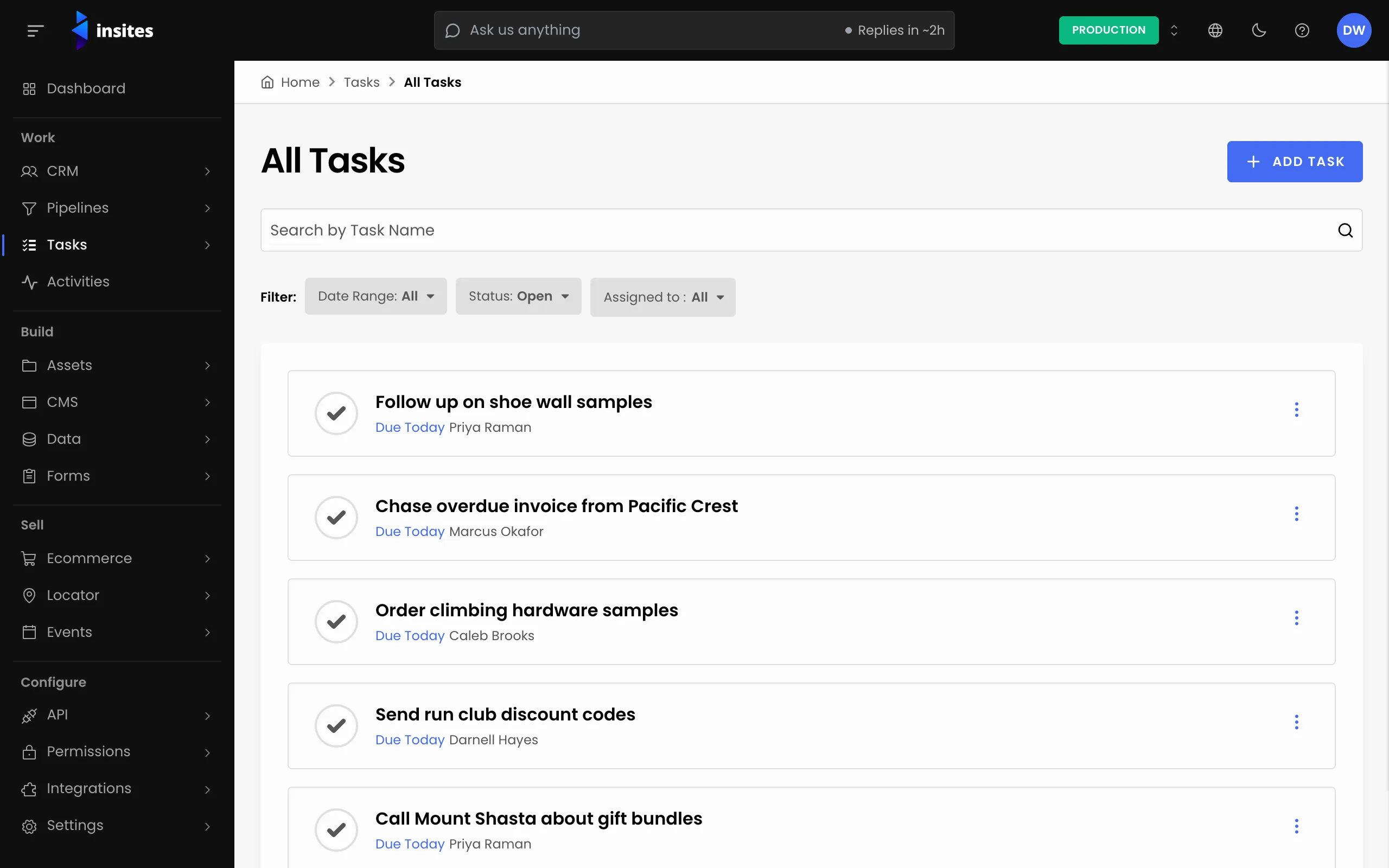
- Tasks > My Tasks lists the tasks assigned to you.
- Tasks > All Tasks lists every task on the site.
- Activities in the menu lists activities across all your contacts and companies.
Next steps
- Activities: the reference for activities.
- Adding an activity.
- CRM: everything the CRM module does.