Site · Events
Check people in with QR codes
Last updated 18 November 2026
Scan ticket QR codes at the door to record attendance.
By the end of this guide, your door staff can scan each ticket's QR code and record the attendee as attended. All they need is a device with a camera and an admin sign-in.
Give attendees their QR codes
Every ticket has a PDF with a QR code. To get the PDFs:
- Open the event and go to the Tickets tab.
- For one ticket, open its row menu and choose View PDF.
- For many tickets, select them and choose Download PDF. Choose Generate Ticket PDF first if a PDF is missing.
Send each PDF to its attendee.
Open the scanner
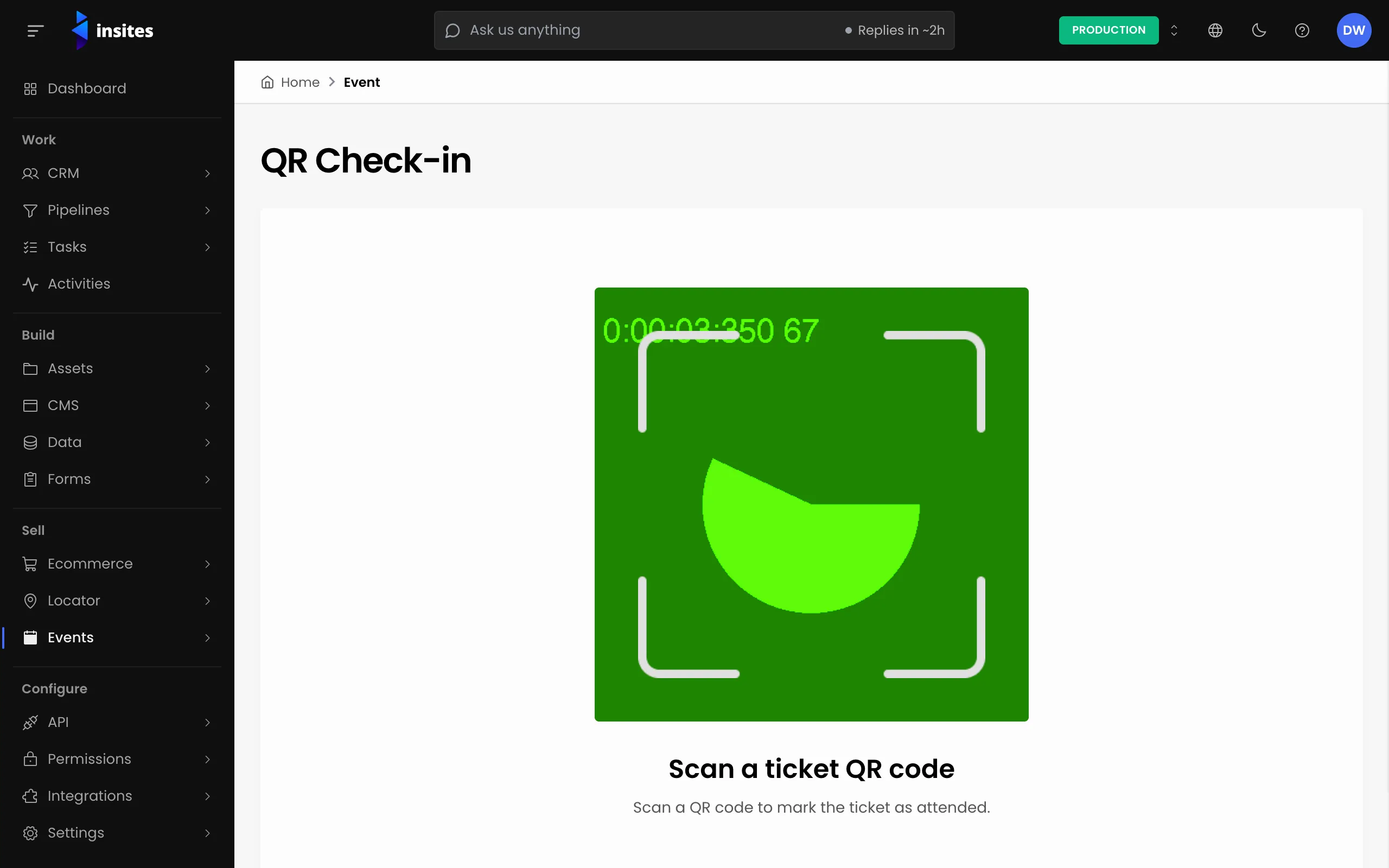
- On a phone, tablet or laptop, sign in to the Site Admin.
- Go to Events > QR Check-in.
- Allow the browser to use the camera when it asks.
Camera access
The camera only works over a secure (HTTPS) connection, and only after you allow it. If no camera is found or another app is using it, the scanner shows an error.
Scan tickets
Point the camera at the QR code. The scanner shows one of these results:
| Result | What it means |
|---|---|
| Attendance Recorded | The ticket is now marked as attended. |
| Ticket Already Processed | Someone scanned this ticket before. It shows who scanned it and when. |
| Invalid QR code | The code is not an Insites ticket code. |
| Ticket Not Found | The ticket is not in the database. |
For a found ticket, Ticket Details shows the ticket number, event, venue area, attendee name, company and dietary requirements. Click Scan New Code for the next person.
What a scan records
A successful scan sets the ticket's Attended status to Yes. It also saves the scan date and time and the admin who scanned it. You can see these on the ticket and in an export.