Site · Events
Sell tickets online
Last updated 18 November 2026
Let visitors buy tickets on your site and pay with Stripe.
When you finish this guide, visitors can find your events on your website, buy tickets and pay by card. Each sale creates an Ecommerce order and the tickets on the event. The buyer gets a confirmation email.
What you need
Online sales come from the Events add-on, a public template. It needs:
- The Insites Website and Portal template, installed first.
- These modules: Events, Ecommerce, CRM, CMS and API.
- A Stripe account, added in Ecommerce.
Ecommerce takes the payment
The Events module does not take payments by itself. The add-on creates an Ecommerce order for each sale and charges it through the Stripe account in Ecommerce.
Connect Stripe
Add your Stripe account in Ecommerce > Integrations > Stripe. Follow Take payments with Stripe. The add-on uses the test keys or the live keys, depending on Use Live Keys.
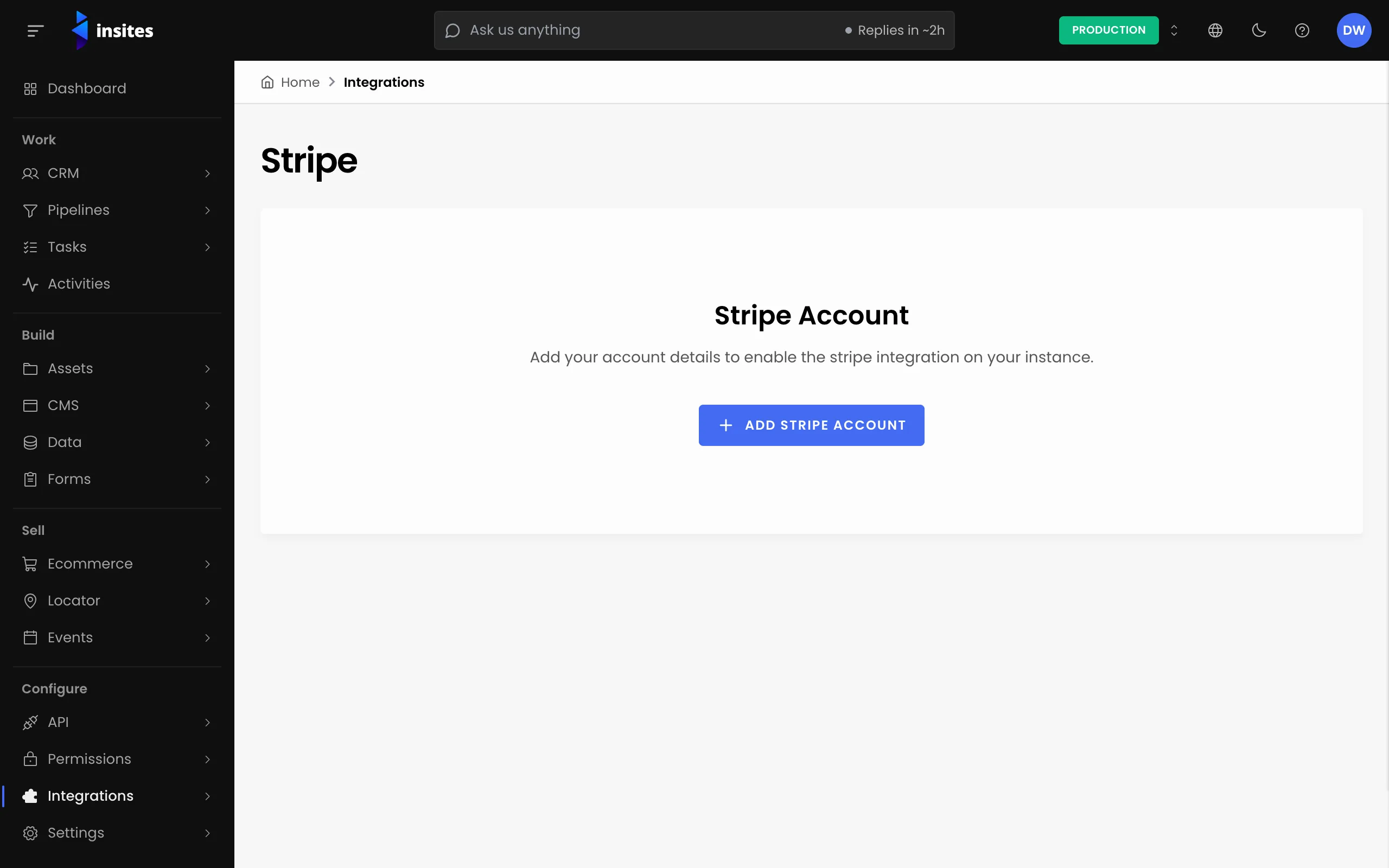
Without Stripe settings, the payment step shows this message: Payment settings not configured, please contact website administrator.
Get the event ready
- Set up the event with a division and at least one pricing tier. See Create an event with tickets.
- Set the event's Status to Enabled. The site lists only enabled events.
- Check the End Date. An event shows under upcoming events until it ends.
- On each tier, set Availability Start and Availability End if sales should open or close on a date. The add-on enforces these dates.
How visitors buy
- They find the event on
/upcoming-eventsand open it. - They go through five steps: Purchase, Billing, Payment, Allocate and Confirmation.
- In the Allocate step, they say who each ticket is for.
A tier shows Sold out when its capacity is used up. Before its start date it says when tickets go on sale, and after its end date it says the pre-sale ended. The add-on checks availability again just before it creates the order.
See the sale in the admin
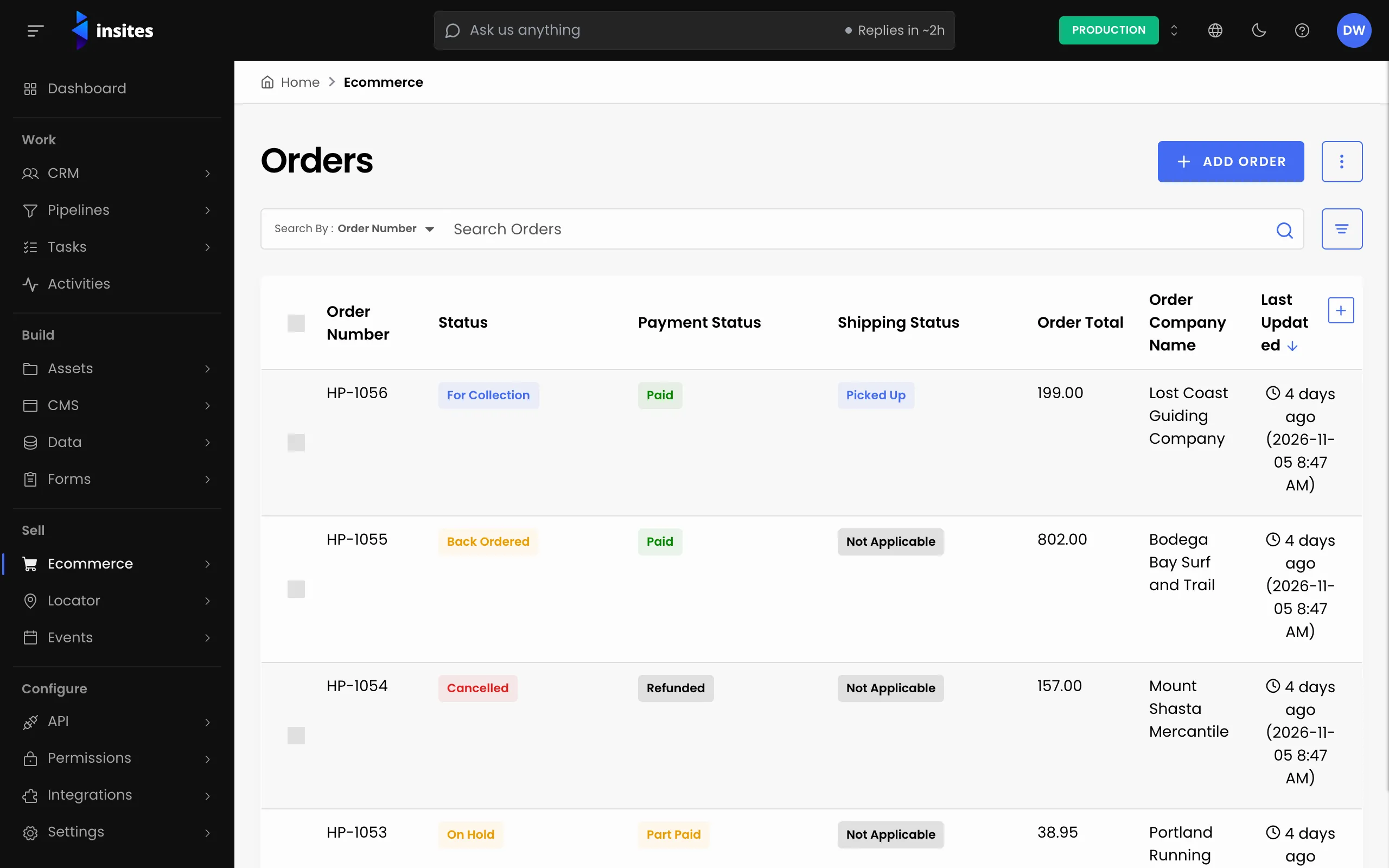
- The order is in Ecommerce > Orders, with its payment.
- The tickets are on the event's Tickets tab.
- The buyer receives an email with the subject Thank you for your ticket order.
Test first
Leave Use Live Keys off and buy a ticket with a Stripe test card. Check the order and the tickets, then switch to live keys.