Site · Locator
Handle enquiries from the locator
Last updated 18 November 2026Applies to Locator v6.0
Review, assign and close the enquiries your locations receive.
When you finish this guide, each enquiry that reaches a location has an owner and a status. You can see at a glance what is new, what is in progress and what is done.
Where enquiries come from
An enquiry holds a person's first name, last name, email, phone number and message, and the location it is about. Your site sends enquiries to the Locator through its API, using your site API key. Your developers set this up.
Review new enquiries
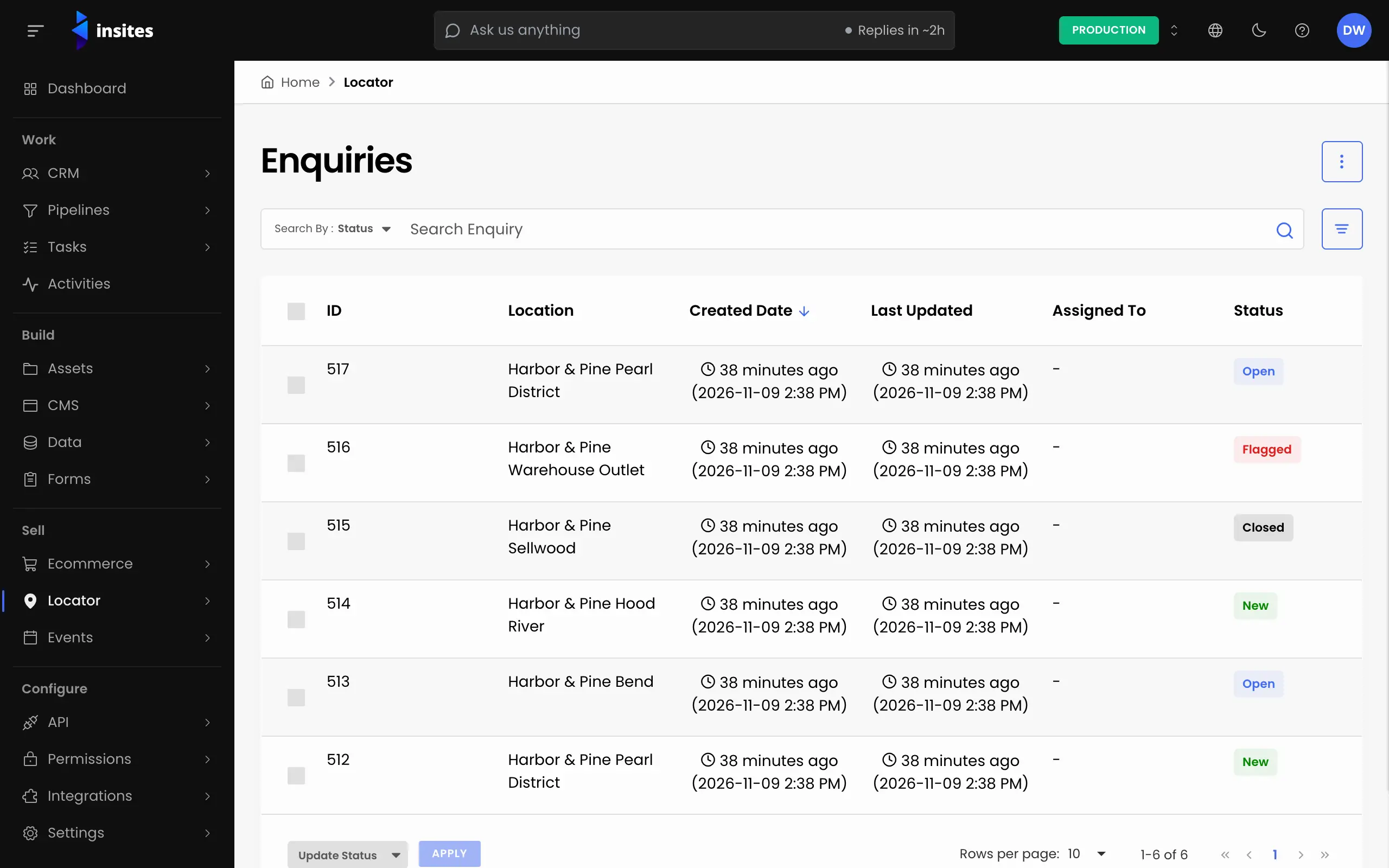
- Go to Locator > Enquiries. The list shows the ID, location, dates, who it is assigned to and the status.
- Open the row actions on an enquiry and select View.
The User Enquiry card shows the person's details and message. The Enquiry Details card shows the status, the assignee, the location and the date it was created.
Assign it and set its status
- On the Enquiry Details card, click Edit.
- Choose an administrator in Assigned To.
- Choose a Status: Open, New, Flagged or Closed.
- Click Save.
To change only the status, open the overflow menu at the top of the enquiry and select an option such as Mark as Closed.
Tip
Agree what each status means for your team. For example, New for unread, Open for in progress, Flagged for needs attention and Closed for done.
Update many enquiries at once
- In the enquiries list, select the enquiries.
- Choose the bulk action Update Status.
- Pick a status in Select Enquiry Status and click Update Status.
Keep a copy
To work with enquiries in a spreadsheet, open the overflow menu in Enquiries and select Export Enquiries.