Site · Locator
Import locations in bulk
Last updated 18 November 2026Applies to Locator v6.0
Add or update many locations at once from a CSV file.
When you finish this guide, many locations are in your Locator at once. You can use the same file to update locations you already have.
Before you start
- Create your categories first if you want to place locations in them. See Group locations into categories.
- Add any custom fields first. Each custom field becomes a column in the template. See Add your own location fields.
Download the template
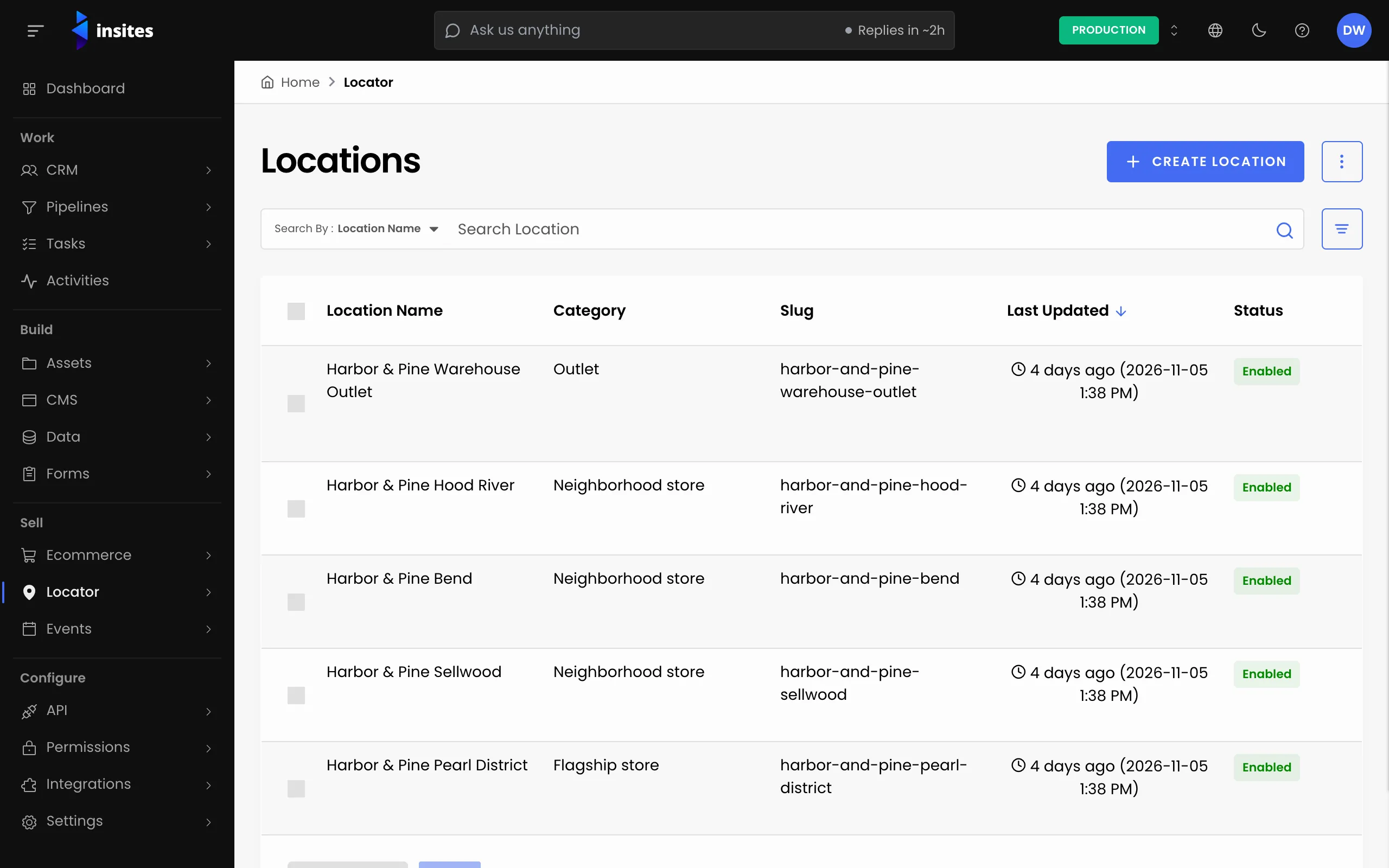
- Go to Locator > Locations.
- Open the overflow menu next to Create Location and select Import Locations. If you have no locations yet, click the Import Locations button on the empty list instead.
- In the Import Locations drawer, click the CSV Template link. Your browser saves
insites-locations-import-template.csv.
Fill in the file
Add one row for each location. Keep the header row exactly as it is: the import stops if the headers do not match the template.
| Column | What to enter |
|---|---|
| UUID | Leave it empty to create a location. Enter the UUID of an existing location to update it. |
| Location Name | Required on every row. |
| Category UUID | The UUID shown at the top of the category's page. |
| Status | enabled, disabled or archived. |
| Latitude and Longitude | The coordinates of the location. The import does not look them up from the address. |
The import checks each value before it saves anything. Use these formats:
- Dates as
YYYY-MM-DD, for example2026-11-01. - Times as
HH:mm, for example09:30. - Yes or no values as
trueorfalse. - The Geojson column as valid JSON.
Upload and import
- Open the Import Locations drawer again.
- Add your file to Upload CSV to Import. It takes one
.csvfile. - Click Import Locations.
If the file has a problem, an Error Log appears in the drawer with the message Failed to import CSV file. Please try again. Each line of the log names the problem and its row and column, for example a missing required field or a date in the wrong format. Fix the file and upload it again.
When the file passes the checks, the drawer closes and the import runs in the background. It finishes with a status of Success, Warning when some rows failed, or Failed when no rows were saved.
Tip
To change many locations at once, export them, edit the rows and import the file again. Rows that keep their UUID update the matching location.