Site · Permissions
Add an administrator
Last updated 18 November 2026Applies to CRM v6.1
Invite a colleague to manage your site from Settings, Administrators, and resend the invitation if it goes missing.
At the end of this guide, a colleague will have an invitation to manage your site. Administrators are people who can sign in to the Site Admin. You add them in the CRM module, under Settings.
Open the administrators list
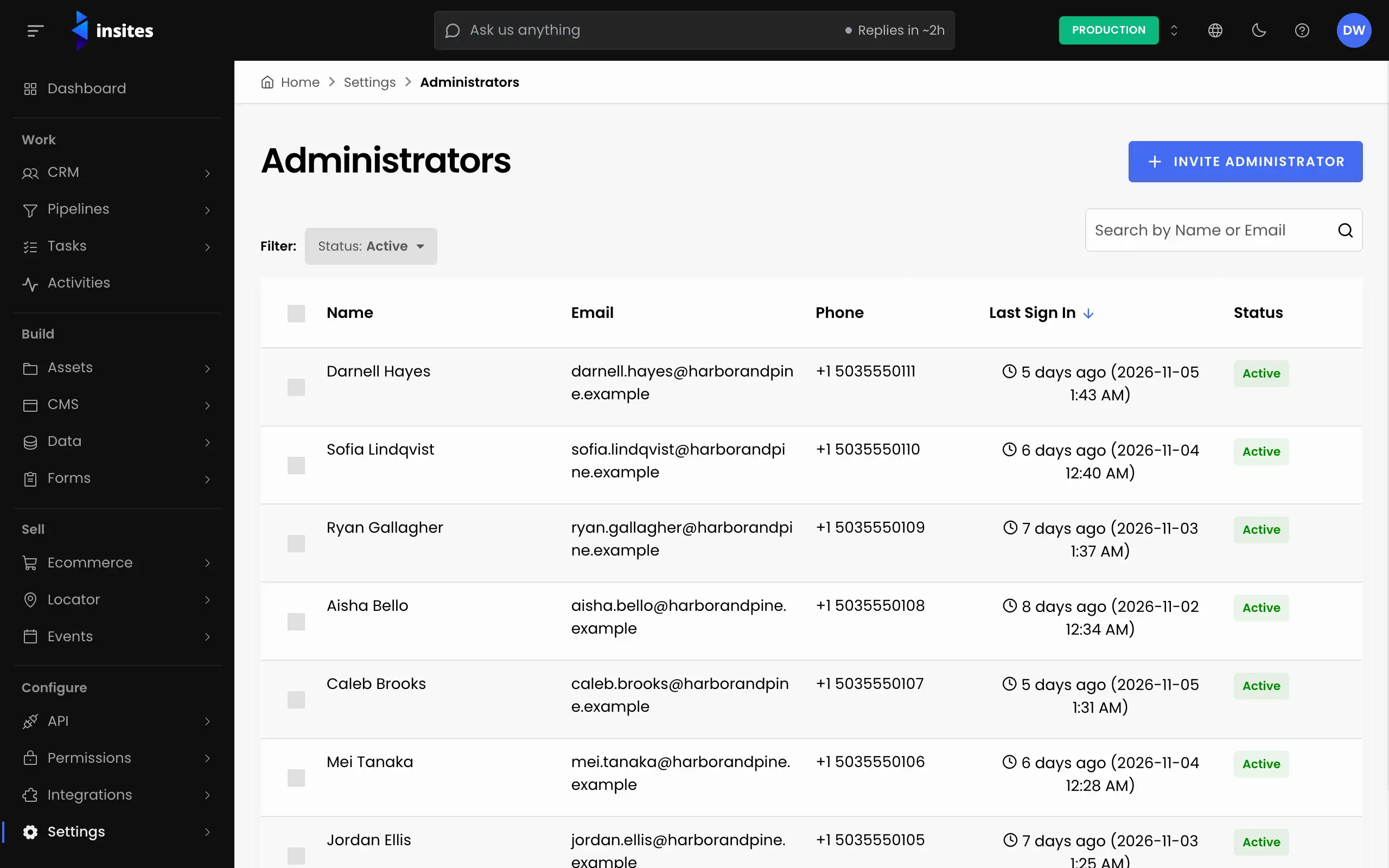
In the Site Admin, select Settings, then Administrators. The list opens on active administrators. Use the Status filter to see people who are Invited or Disabled.
Invite the person
Click Invite Administrator. If the list is empty, the button reads Add Administrator instead. A panel opens. Fill in:
- First Name
- Required.
- Last Name
- Required.
- Required. The address the invitation goes to. Insites saves every email address in lowercase.
- Phone
- Optional.
Click Invite. When it works, you see the message: Administrator added. The invitation email is on its way.
The person now appears in the list with the status Invited. They get an invitation email.
Note
If the email could not be sent, the message says so and gives the reason. The administrator is still added. Fix the cause, then use Resend Invitation as described below.
If the email address is already in use
Insites checks the address before it adds anyone:
- An active administrator has it. The form shows Email has already been taken. Nothing changes.
- A disabled administrator has it. Insites offers to enable that account. Click Enable Administrator to accept, then resend the invitation.
- Another record has it, for example a contact. Insites asks whether to make that record an administrator. Click Set as Administrator to accept. This overwrites the record's details with what you typed.
Resend an invitation
If the person cannot find the email, set the Status filter to Invited. Open the row's actions and choose Resend Invitation, then confirm. You can also open the administrator and click Resend Invitation there.