Site · Permissions
Review who has access
Last updated 18 November 2026Applies to CRM v6.1
Check your administrators, their last sign-in and event stream, who holds each profile, and which pages need a policy.
At the end of this guide, you will know who can manage your site, who holds each profile, and which pages need a policy to open. Run through it when someone leaves, and every few months as a habit.
Check your administrators
In the Site Admin, select Settings, then Administrators. The list shows each person's Name, Email, Phone, Last Sign In and Status, sorted by Last Sign In.
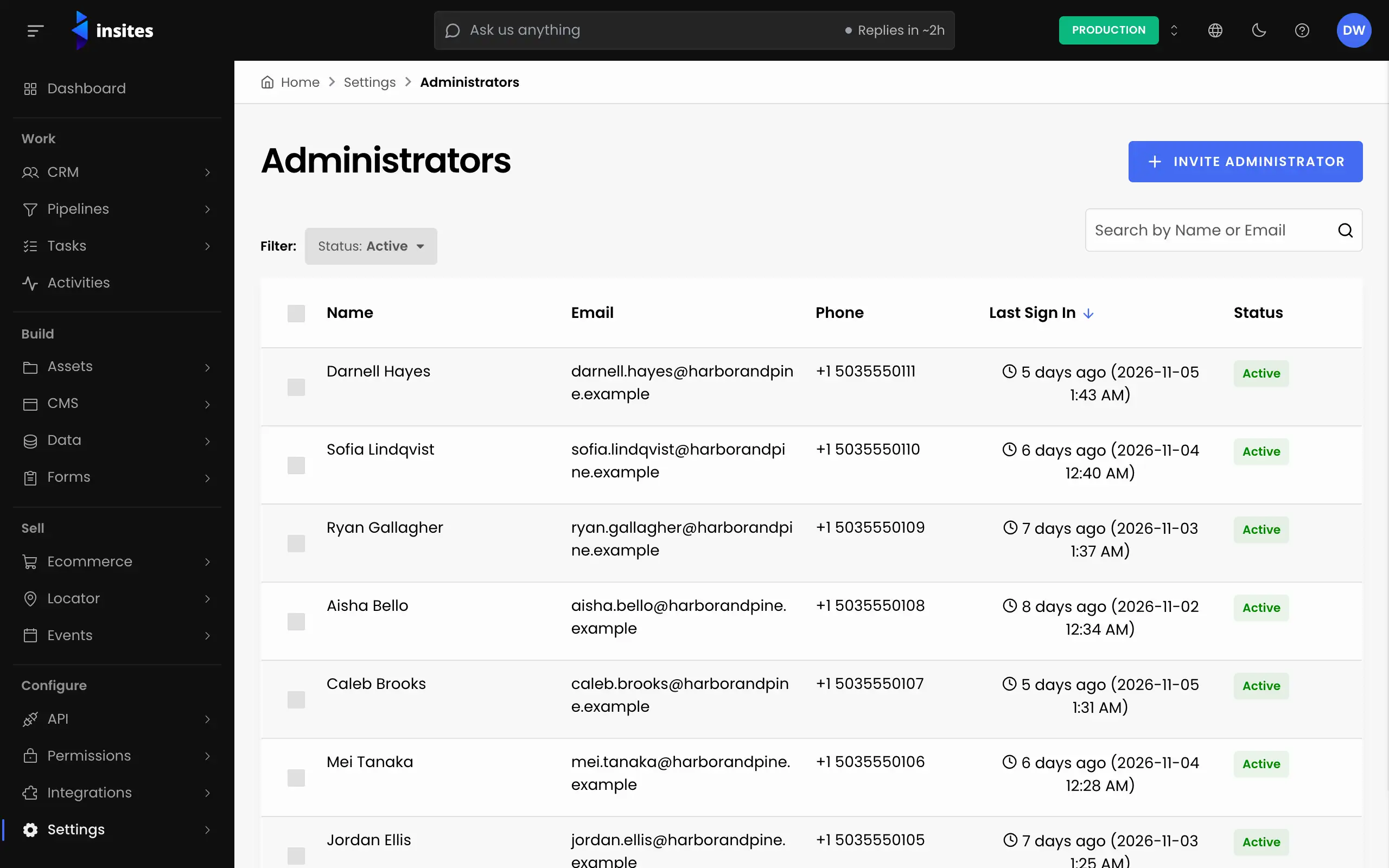
- Look for people who have not signed in for a long time. Ask whether they still need access.
- Set the Status filter to Invited. These people never accepted their invitation. Resend it, or remove them.
- Set the filter to Disabled. Delete anyone who will not come back.
See what an administrator has done
Open an administrator and select the Event Stream tab. It shows a timeline of logged events for that person. Click View Details on an event to see more. Click Refresh to load new events.
Check who holds each profile
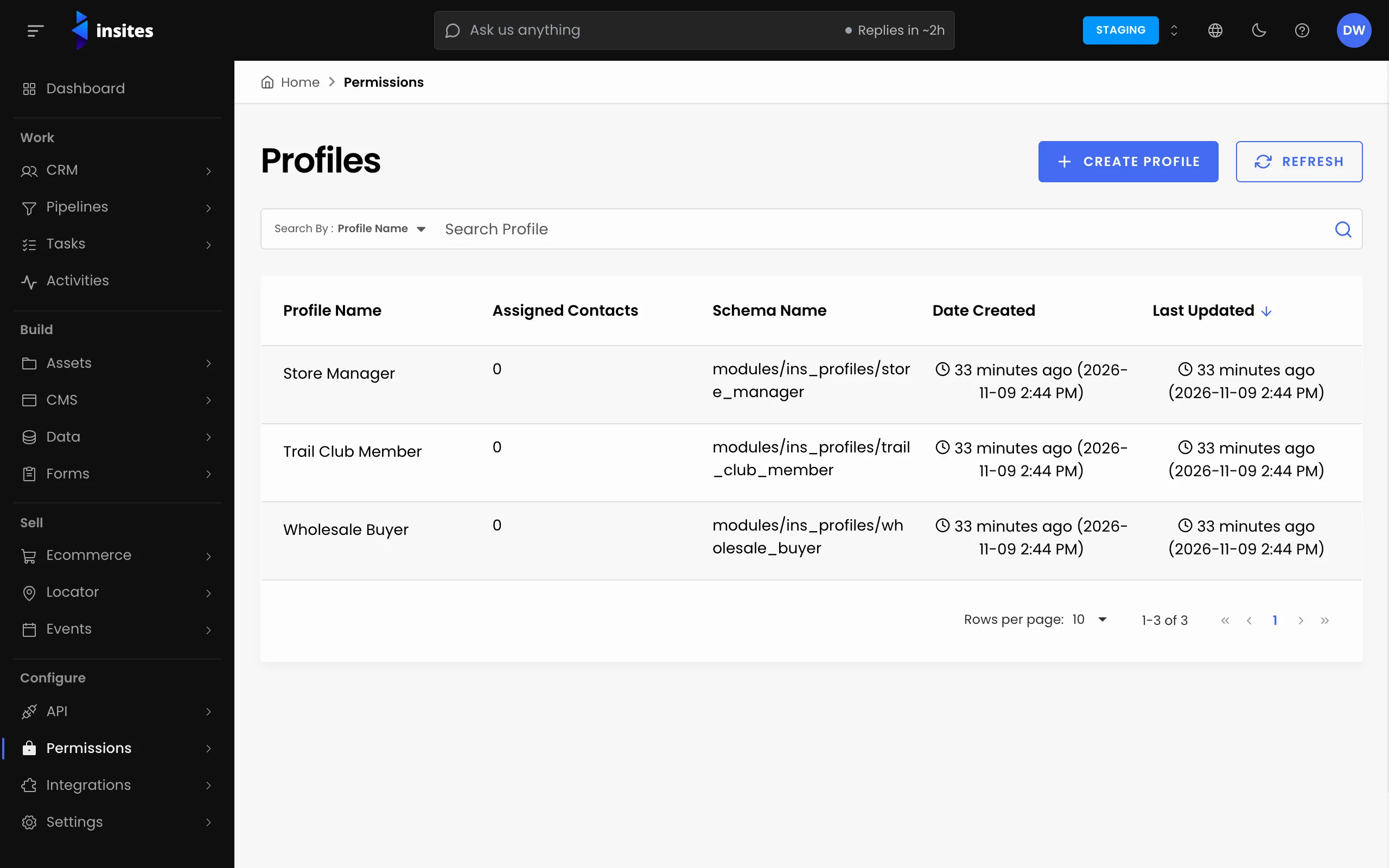
Select Permissions, then Profiles. The Assigned Contacts column shows how many contacts hold each profile. Open a profile and select the Contacts tab to see who they are. To take a profile away from someone, choose Remove on their row and type REMOVE to confirm.
Check which pages are protected
Select CMS, then Pages, and open a page. On its Security tab, Apply Auth Policy shows whether the page is protected, and Auth Policies shows which policies a visitor must pass. Check the pages that hold private content.
To see every policy on your site, select API, then Authorization Policies.
Note
No screen lists the pages that use a given policy. Check each page's Security tab.