Site · Permissions
Show a page only to signed-in users
Last updated 18 November 2026Applies to CMS v6.0
Write an authorization policy that admits signed-in users, then attach it to a page on its Security tab.
At the end of this guide, a page on your site will open only for people who are signed in. Everyone else is turned away before the page runs. You do this in two parts: write a short rule called an authorization policy, then attach it to the page.
A policy is a few lines of Liquid. It prints true to let a visitor in, or false to turn them away. Insites runs it before the page body, so a refused visitor never sees the page's content.
Create the policy
In the Site Admin, select API, then Authorization Policies. Click Create Authorization Policy. On the Details tab, fill in:
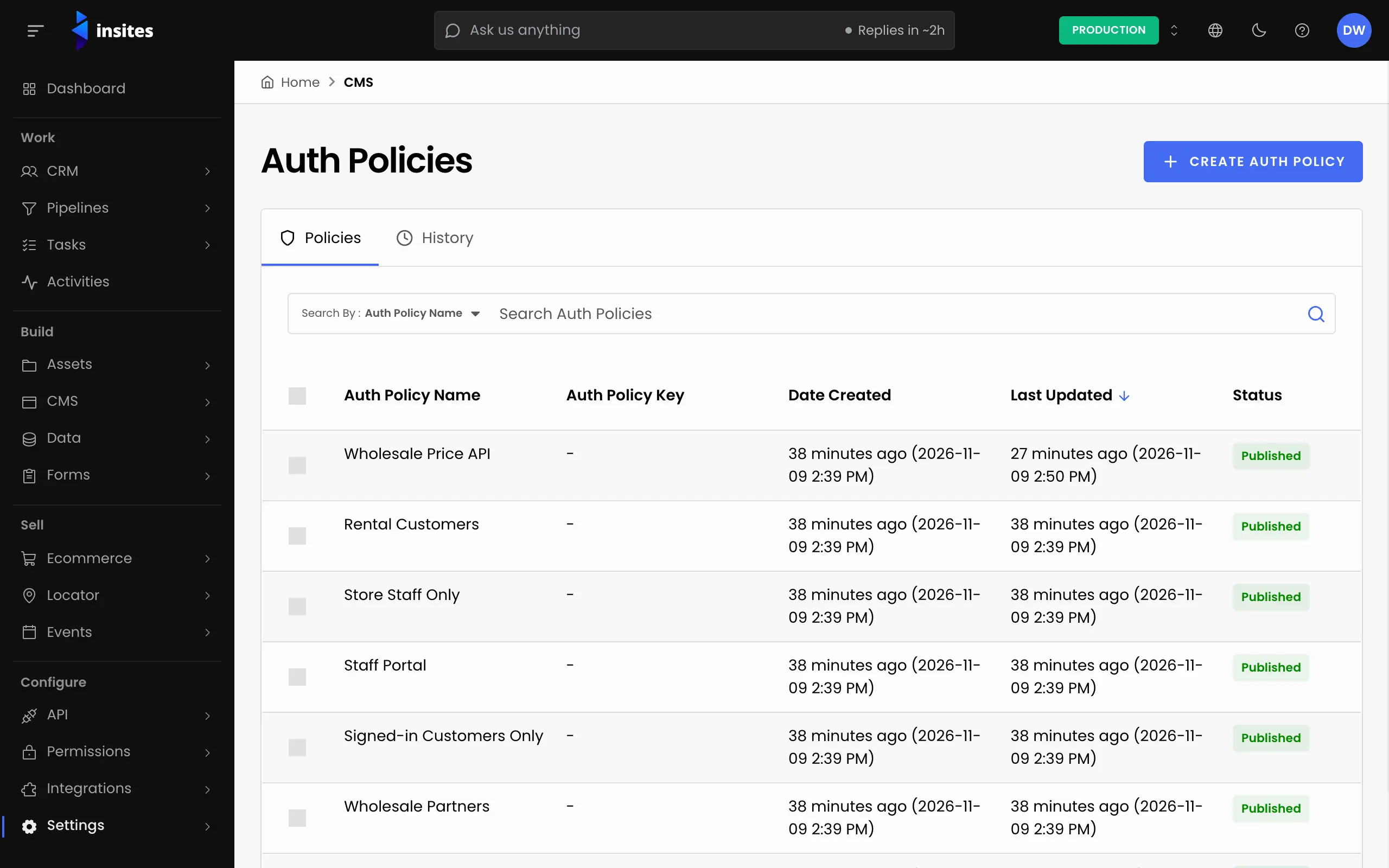
- Policy Name
- Required. The label you pick on the page later, for example
Signed-in users only. - Flash Alert
- Optional. A message shown to the visitor when the policy turns them away.
- Redirect To
- Optional. Where to send a visitor who is turned away, for example your sign-in page.
Write the rule
On the Body tab, enter this in Content:
Content
{% liquid
  if context.current_user == blank
    echo false
    return
  endif
  echo true
%}
When nobody is signed in, context.current_user is blank, so the policy prints false and stops. Otherwise it prints true.
Note
Always print true or false on every path through a policy. Never let a path print nothing. A reviewer can then see the deny path, and a test can check it.
Click Create Policy. You see the message: Authorization Policy successfully created.
Attach it to the page
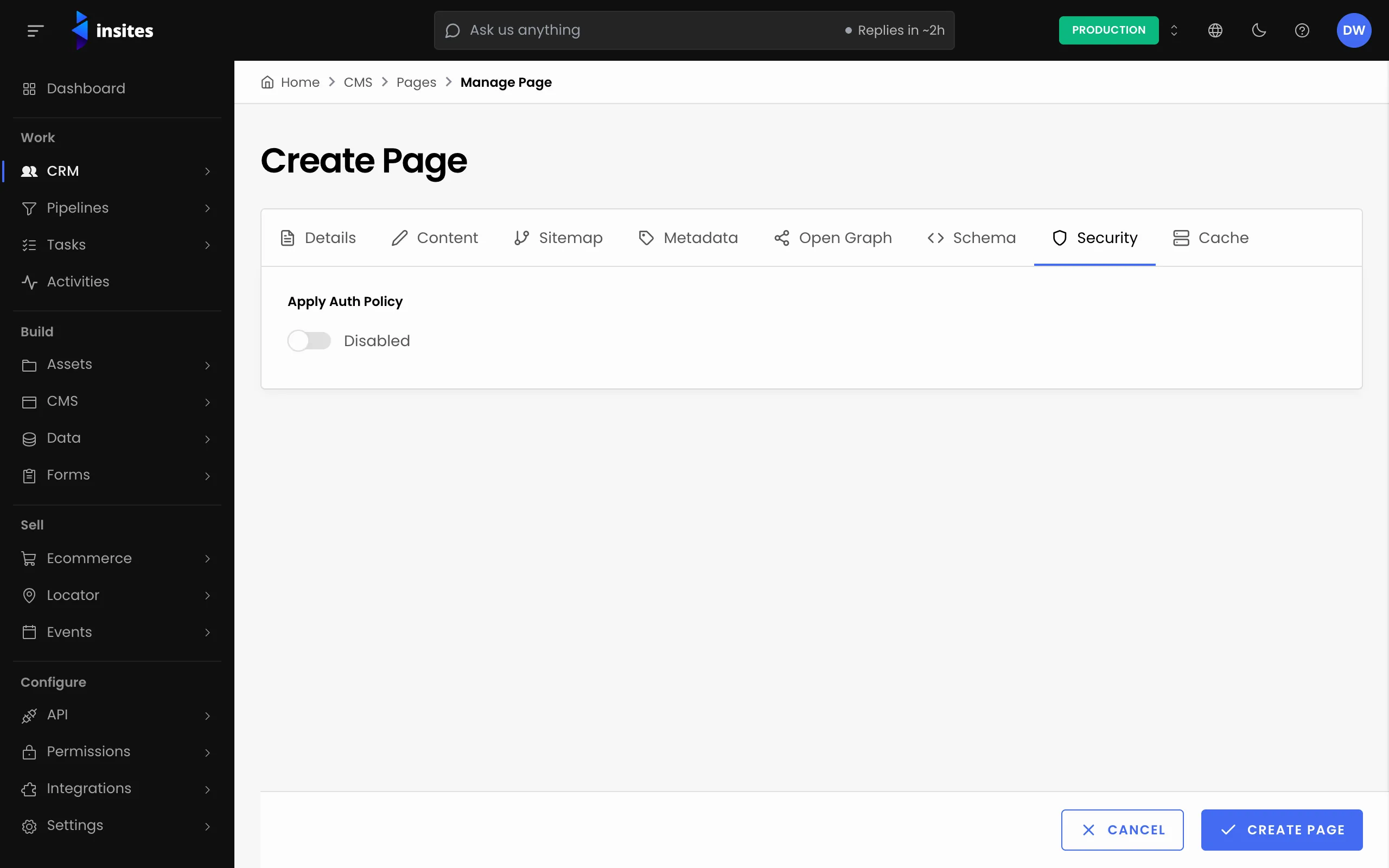
- Select CMS, then Pages, and open the page.
- Open the Security tab.
- Turn on Apply Auth Policy. The Auth Policies box appears.
- Pick Signed-in users only. You can search the list.
- Click Save.
You can pick more than one policy. A visitor must pass every policy you pick to open the page.
Test it
Open the page in a private browser window, where you are not signed in. You are turned away, or sent to your Redirect To address. Sign in to your site and open the page again: it loads.
Remove the restriction
On the page's Security tab, turn off Apply Auth Policy. Insites asks you to confirm, because the selected policies are removed from the page. Confirm, then click Save.