Site · Permissions
Disable or remove an administrator
Last updated 18 November 2026Applies to CRM v6.1
Disable an administrator to pause their access, enable them again later, or delete them for good.
At the end of this guide, a person who no longer needs the Site Admin will have no access to it. You can disable them, which keeps their record so you can bring them back later. Or you can delete them, which removes the record for good.
Disable is the safer choice when you are not sure. Someone who is leaving for a while, or whose role may change, is a good fit for it.
Find the person
In the Site Admin, select Settings, then Administrators. Search by name or email. If you cannot see them, set the Status filter to Invited: people who never accepted their invitation are listed there.
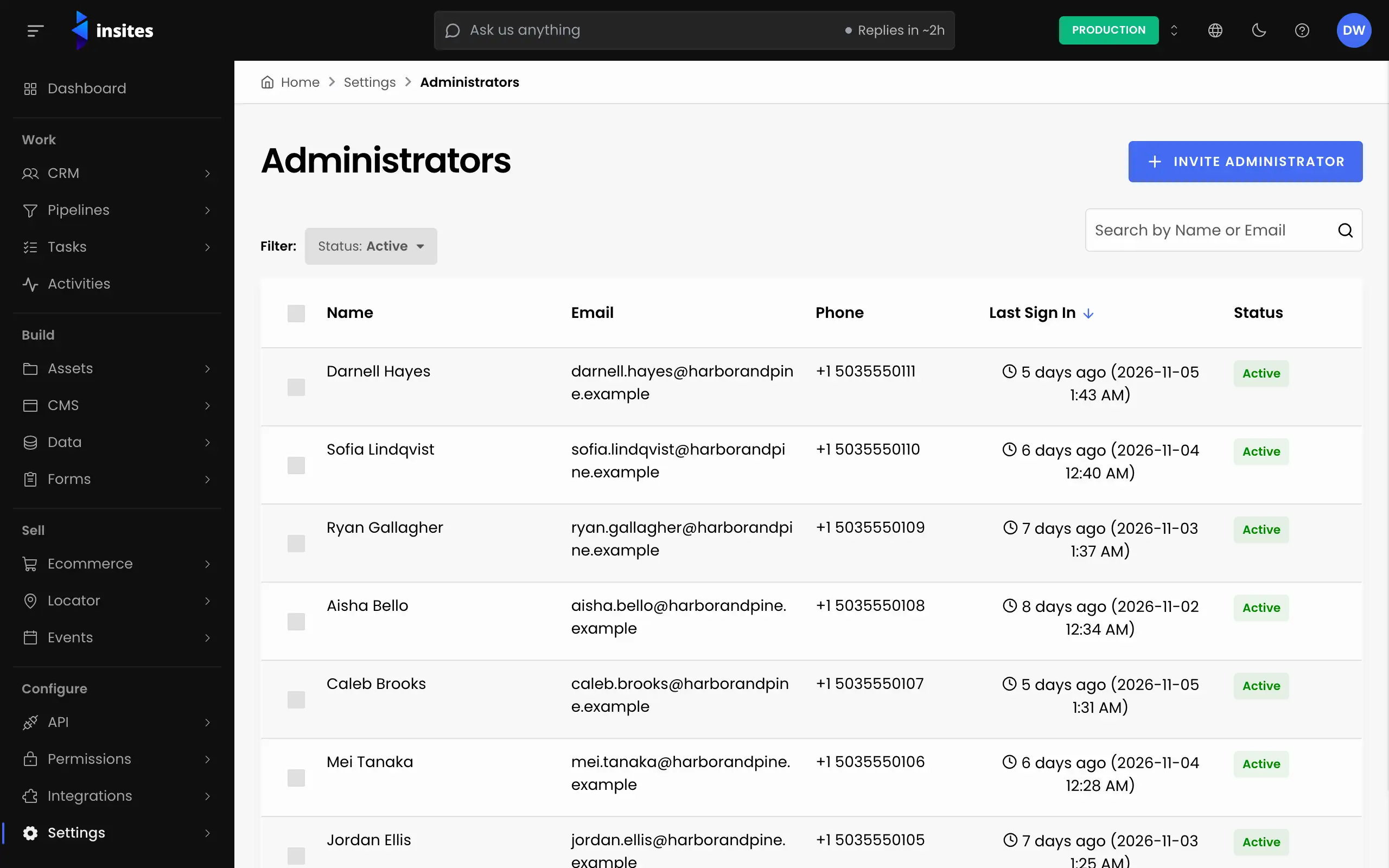
Disable an administrator
- Open the row's actions and choose Disable. You can also open the administrator and click Disable.
- Confirm with Disable Administrator.
You see the message: Administrator successfully disabled. The person moves to the Disabled list.
Bring a disabled administrator back
- Set the Status filter to Disabled.
- Open the row's actions and choose Enable, then confirm.
- Resend their invitation. The success message reminds you that they need it to sign in again.
Delete an administrator
Warning
Deleting is permanent and cannot be undone. If you might need the person again, disable them instead.
- Open the row's actions and choose Delete.
- Type
DELETEin the box, then confirm.
You see the message: Administrator successfully deleted.
Change several people at once
Tick the rows you want, then pick a bulk action. On the Active and Invited lists you can disable or delete. On the Disabled list you can enable or delete.