Site · Pipelines
Import opportunities
Last updated 18 November 2026Applies to Pipelines v5.10
Bring a list of deals into a pipeline from a CSV file.
When you finish this guide, a list of deals from another system or a spreadsheet is on your pipeline board. You fill in a CSV template, upload it, and Insites adds each row as an opportunity.
You need a pipeline with its stages already set up. See Create a sales pipeline and its stages.
Collect the UUIDs you need
The file links each row to a pipeline, a stage and an owner by their UUIDs, not their names.
- Pipeline UUID: go to Pipelines > Configuration and open the pipeline. The UUID is shown at the top of the page.
- Stage UUID: on the same page, open the Stages tab and select a stage. Its UUID field shows the value.
Tip
The easiest way to see the exact format of every column is to export first. Add one opportunity by hand, then choose Export Opportunities from the same menu. Copy the values from that file.
Get the template
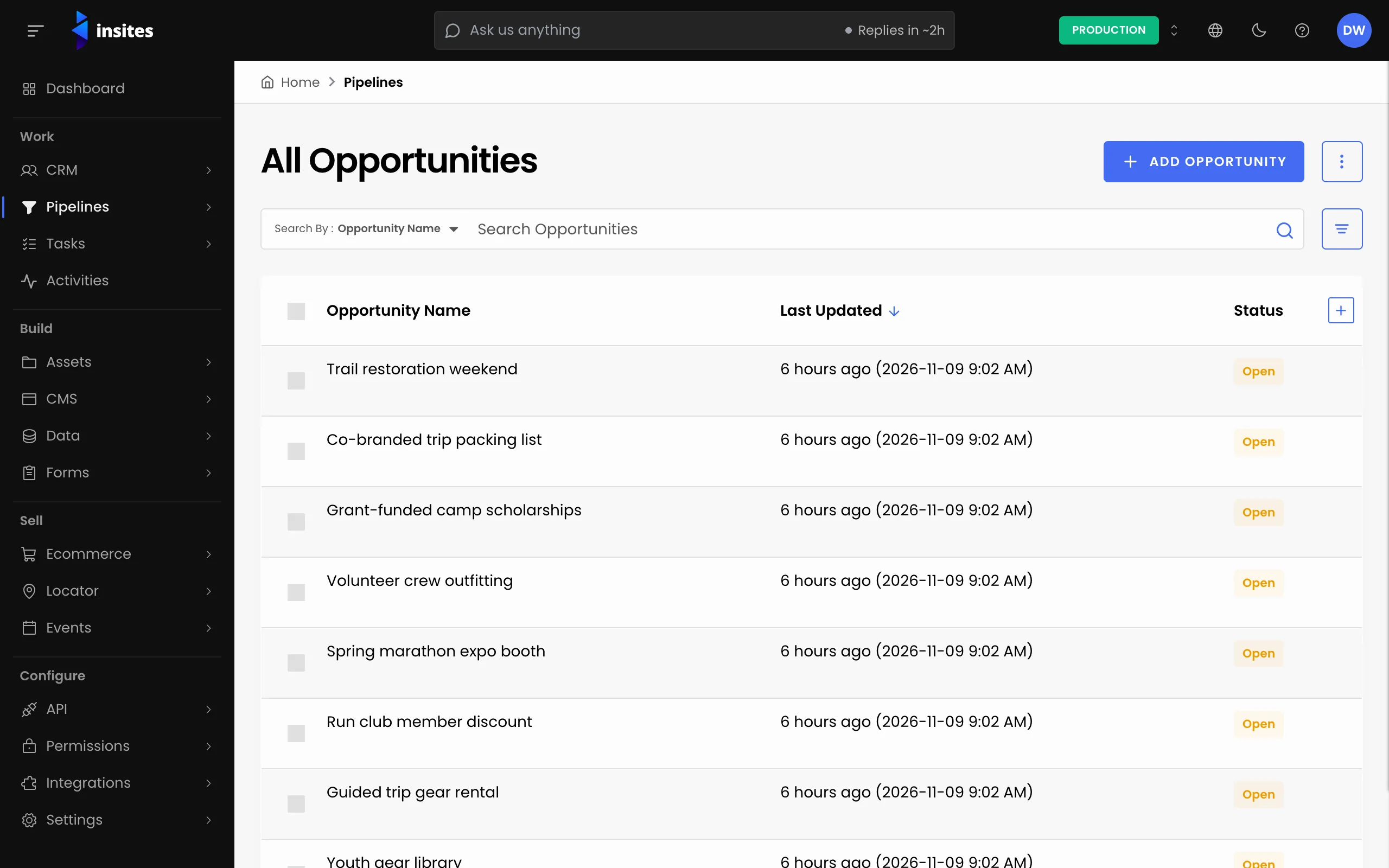
- Go to Pipelines > All Opportunities, or open the Opportunity Board.
- Open the menu at the top right and choose Import Opportunities. The Import Opportunities panel opens.
- Select CSV Template to download the file. The first row holds the column headers. Do not rename or remove them.
Your pipeline custom fields are added to the template as extra columns.
Fill in your opportunities
Add one opportunity per row. These columns are required in every row:
- Opportunity Name
- Opportunity Owner UUID
- Pipeline UUID
- Stage UUID
- Value
- Target Conversion Date, written as year, month and day, for example
2026-12-31 - Status: Open, Won, Lost or Withdrawn
The UUID column decides what each row does:
- Leave it empty to add a new opportunity. Insites creates its UUID.
- Put an existing opportunity's UUID to update that opportunity.
Save the file as CSV.
Upload the file
- In the Import Opportunities panel, add your file to Upload CSV to Import. You can upload one
.csvfile at a time. - Select Import Opportunities.
Insites checks the file before it imports anything. If it finds problems, it shows “No items were imported. Please fix error(s) found.” An Error Log lists each problem with its row and column, such as a missing required value or a date in the wrong format. Fix those cells and upload the file again.
Check the result
A file that passes the checks is imported in the background, so you can keep working. Only one import runs at a time. If you start another too soon, Insites asks you to wait for the current one to finish.
When it is done, open the Opportunity Board and pick your pipeline. Check that each deal is in the right stage.
Note
The same menu has Import Activities, for bringing in the call and meeting history of your opportunities. It works the same way, with its own template.
Next steps
- Importing and exporting pipeline opportunities: the reference for opportunity files.
- Add and move opportunities on the board
- Pipelines: everything the Pipelines module does.