Site · Pipelines
Add and move opportunities on the board
Last updated 18 November 2026Applies to Pipelines v5.10
Add deals, move them between stages and close them out.
When you finish this guide, your deals are on the board and you can move each one forward as it progresses. You add an opportunity, move it between stages, and mark it won, lost or withdrawn.
You need a pipeline with at least one stage. If you do not have one, see Create a sales pipeline and its stages.
Open the board
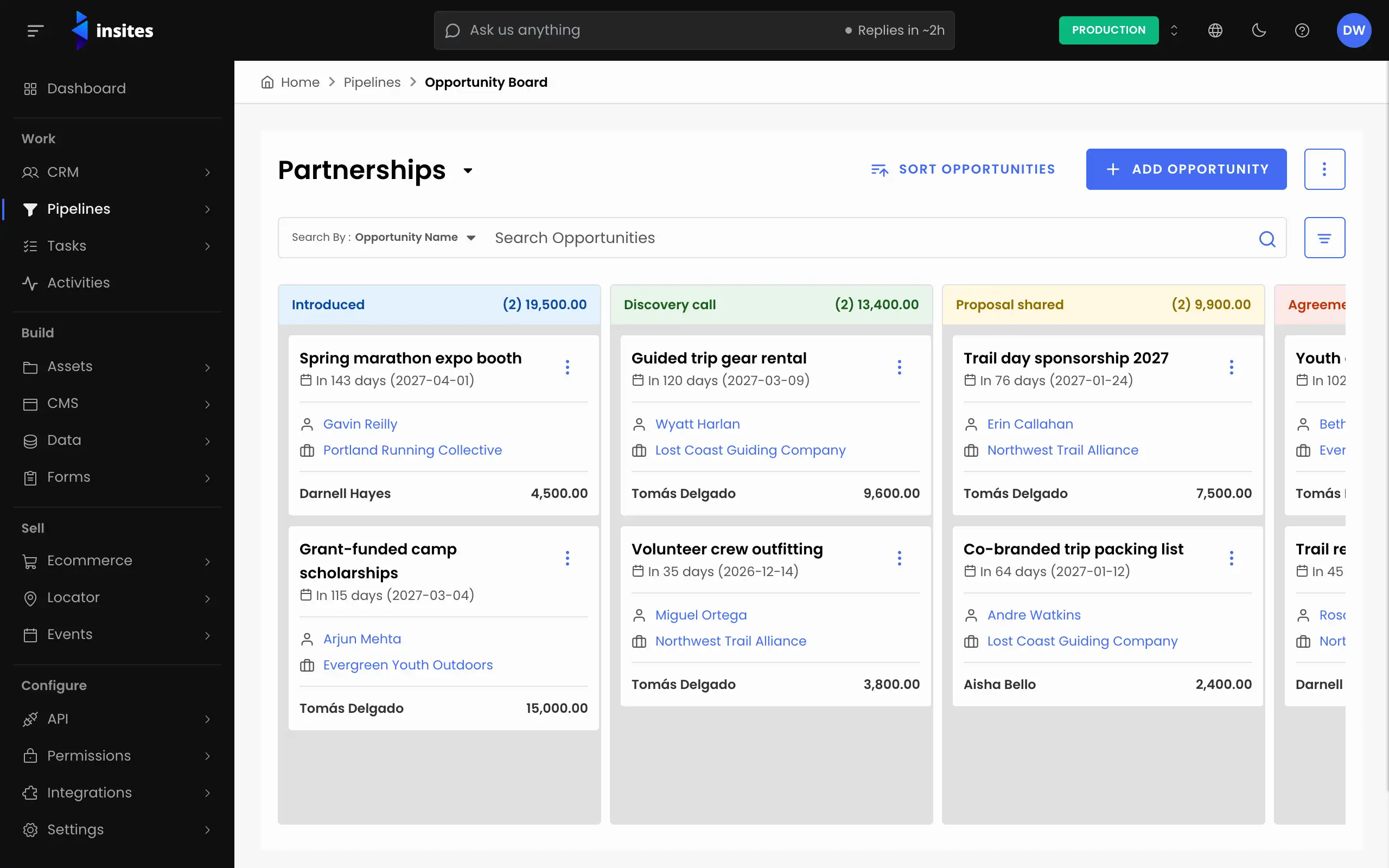
- In the admin, go to Pipelines > Opportunity Board.
- Pick your pipeline in the pipeline filter.
Each stage is a column. The column heading shows how many opportunities it holds and their total value.
Add an opportunity
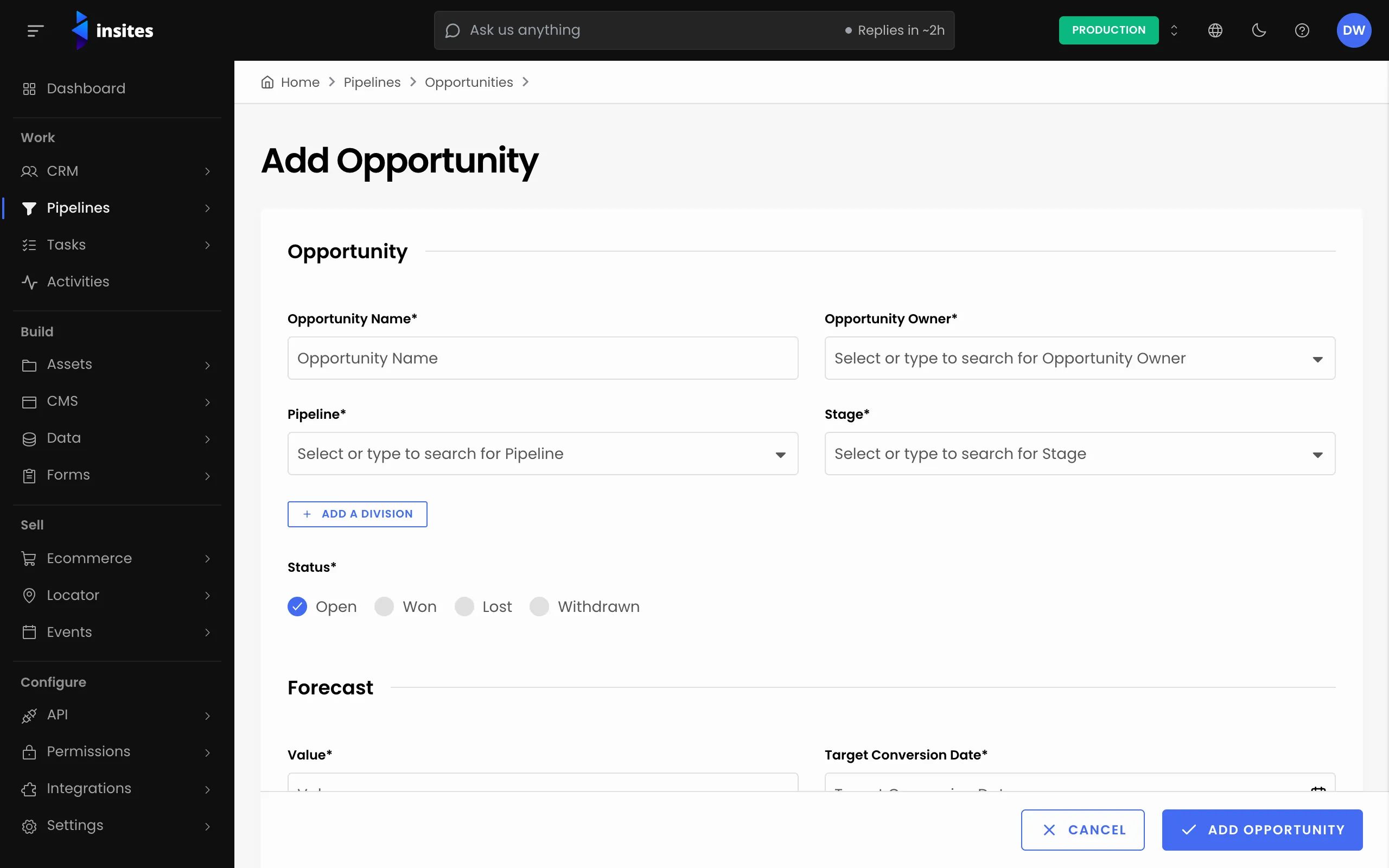
- Select ADD OPPORTUNITY. The Add Opportunity page opens.
- Fill in the required fields: Opportunity Name, Opportunity Owner, Pipeline, Stage, Value and Target Conversion Date.
- Leave Status as Open for a new deal. You can also choose Won, Lost or Withdrawn. For Won or Lost, a reason field appears. It is required if the pipeline asks for that reason.
- Under Who it is for, pick a Contact and a Company from your CRM, if you have them.
- Select ADD OPPORTUNITY.
Tip
Division, Probability, a referral and linked records are hidden until you need them. Use the ADD A DIVISION, SET A PROBABILITY, ADD A REFERRAL and LINK AN ORDER OR FORM SUBMISSION buttons to show them.
Move an opportunity to another stage
Drag the card from one column and drop it in another. The move is saved straight away.
You can also use the menu on the card:
- Open the card menu and choose Move To Stage.
- Pick the stage in the list and select Move To Stage.
If you do not pick a stage, Insites asks you to select one.
Close an opportunity
- Open the card menu and choose Mark as Won, Mark as Lost or Mark as Withdrawn.
- For Won or Lost, pick a reason from the list. A reason is not asked for when you withdraw a deal.
- Confirm. Insites shows “Opportunity successfully updated.”
Note
When you mark a deal as lost, Insites warns: “Please note: any open tasks linked to this opportunity will also be marked as complete.”
Changed your mind? Open the card menu on a closed deal and choose Reopen Opportunity.
Find a deal quickly
Use Sort Opportunities to order every column by name, target conversion date or task due date. Select a card to open the full opportunity, with its activities, tasks, related contacts and event stream.
Next steps
- Pipeline board view: the reference for the board.
- Import opportunities
- Report on pipeline value
- Pipelines: everything the Pipelines module does.